





All apps

ellieMouse A little less repetition

Ellie takes the clicks.
You take your time back.

macOS
Take a closer look
Ellie Mouse

A little help with the clicks that keep repeating.

ellieMouse · OVERVIEW

That click. Again. And again.Let Ellie take it from here.

For the things you need to click again and again. Choose the position and timing, and let Ellie handle the repetition.

0.1–20Clicks per second
X · YChoose your target position
ShortcutQuick start and stop

Feature preview

Right here. At your pace.Leave the repeats to Ellie.

Three little moments. One familiar flow.

  1. 01Pick a position

    Choose the screen position to click.

  2. 02Set the pace

    Adjust how frequently clicks repeat.

  3. 03Start. And stop.

    Stay in control with a button or your shortcut.

An illustrated preview of the workflow. Explore the app screens below.

LITTLE DETAILS. BIG DIFFERENCE.

01 — Click frequency

Find the pacefor your task.

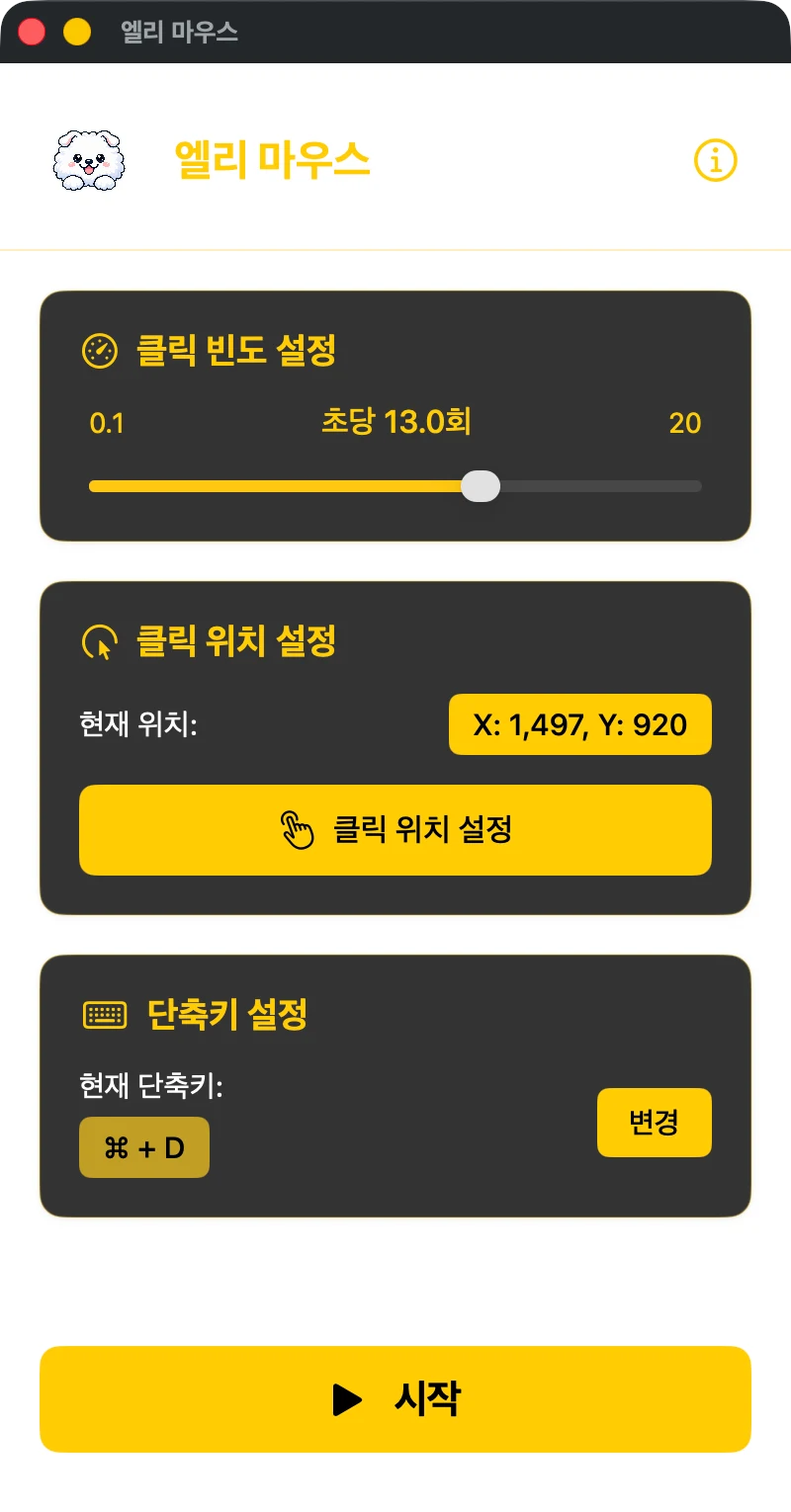
When the same click keeps repeating, set the frequency with a slider. Choose from 0.1 to 20 clicks per second and see the value before you start.

  • 0.1–20 clicks per second
  • A simple frequency slider
  • Current value at a glance
Position and click frequency (Korean UI)
At the pace your task needs

App capture

02 — Choose a position

Show Elliewhere to click.

Select the click-position control, then choose the target. The X and Y coordinates appear so you can check them before starting. Set them again if the target window moves.

  • Pick a position on screen
  • Visible X and Y coordinates
  • Set a new position when needed
Position and click frequency (Korean UI)
A clear target. A simple setup.
App capture

03 — Start and stop

Start when needed.Stop when done.

Control repeated clicks from the button or a shortcut you choose. Use the key recorder to set a combination that lets you start and stop while working.

  • Start/stop button
  • Custom key combination
  • Current shortcut shown on screen
Start/stop shortcut setup (Korean UI)
Let it repeat. Stay in control.
App capture

A LITTLE MORE DETAIL

Made for the littlemoments, too.

Get to know the details that make the app useful.

01

Adjust frequency

Choose between 0.1 and 20 clicks per second for your task.

02

Choose a position

Select the position control, then point to the target on screen.

03

Check coordinates

Review the configured X and Y coordinates before starting.

04

Custom shortcut

Use the key recorder to choose your start/stop combination.

05

Start and stop

Control repeated clicks directly with the button or shortcut.

06

Permission guidance

The app explains why Accessibility access is needed for click actions.

LET’S GET STARTED

A simple place to start.

  1. 01

    Check permission

    Accessibility permission is needed to perform click actions.

  2. 02

    Choose position and pace

    Select a target position and the number of clicks per second.

  3. 03

    Use your shortcut

    Start with the configured shortcut, then stop when you are done.

Ellie Mouse

macOS 13.5+

Compatibility
macOS 13.5 or later
Permission
Accessibility
Click frequency
0.1–20 clicks per second
Data storage
Coordinates and settings on your Mac

A few useful answers.

How do I start and stop?

Use the start/stop button or the keyboard shortcut you configured.

Why is Accessibility permission needed?

It lets the app perform clicks on your behalf. The app does not collect screen contents or typed text.

Can I move the target window afterward?

Actions use the configured screen coordinates. Recheck the positions if you move or rearrange the target window.

YOUR DATA, EXPLAINED

The details of your data.

Click positions and settings stay on your Mac. The app does not collect screen contents or typed text.

Privacy policy for this app

LET’S SAY HELLO

Little ideas.
Lovely conversations.

An app idea, a question, or something that could be better.
I’d love to hear from you.

Ellie waving hello with a yellow envelope
Position and click frequency (Korean UI)