
 All apps
Pungryu JeonbukA filter camera for slow, old time
Warm wood tones.The feel of old time.
Autumn at Omokdae, the bamboo of Gyeonggijeon, a folding fan and morning light through a hanji window. Twenty filters from ten Jeonbuk views and ten old crafts settle your photos into warm wood, bright cream and softly lifted blacks.
 iOS
 Android

OmokdaeAutumn settling into warm wood tones below Omokdae
PUNGRYU JEONBUK · OVERVIEW
Ten views, ten moods.
Twenty warm wood-tone filters.
Warm wood, bright cream and softly lifted blacks. The colors come from autumn at Omokdae, Naejangsan maples, well-loved wooden furniture and a lacquered box. Nothing is painted on, no grain or paper texture: only color and tone change, so your photo stays clean.
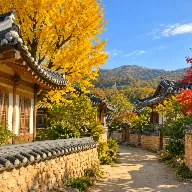
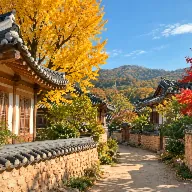
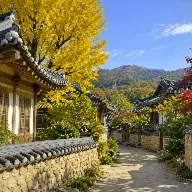
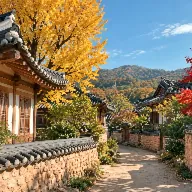
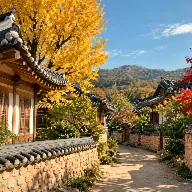
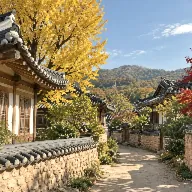
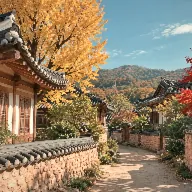
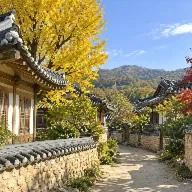
- Filters
- 2010 view · 10 mood
- Slider
- 1Just intensity
- Pixels
- 4096Longest saved edge
- Uploads
- 0No account. No ads.
01 — THE FOLDING SCREEN
Jeonbuk’s views,
on ten panels.
The ten view filters stand on a ten-panel folding screen. Scroll on and the screen opens; one panel at a time steps forward, and its filter soaks in like ink on hanji.
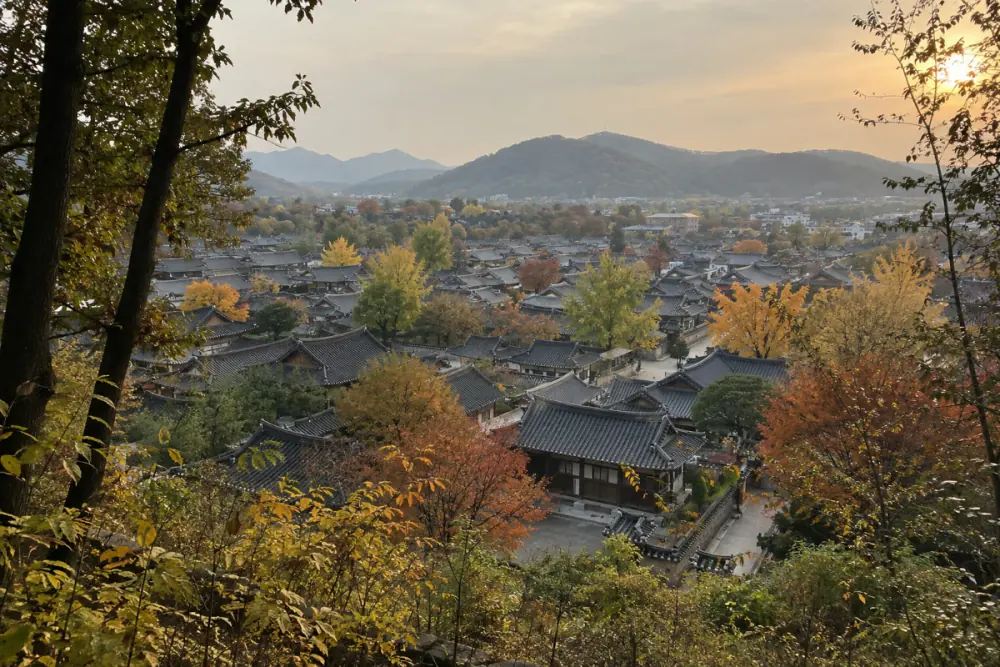
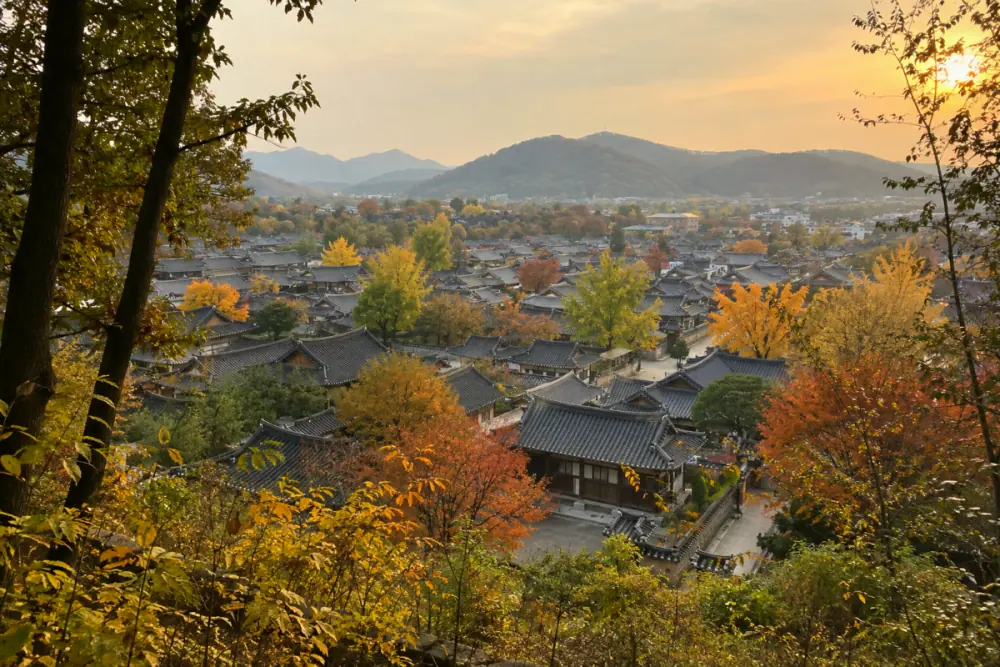
01OmokdaeAutumn settling into warm wood tones below Omokdae 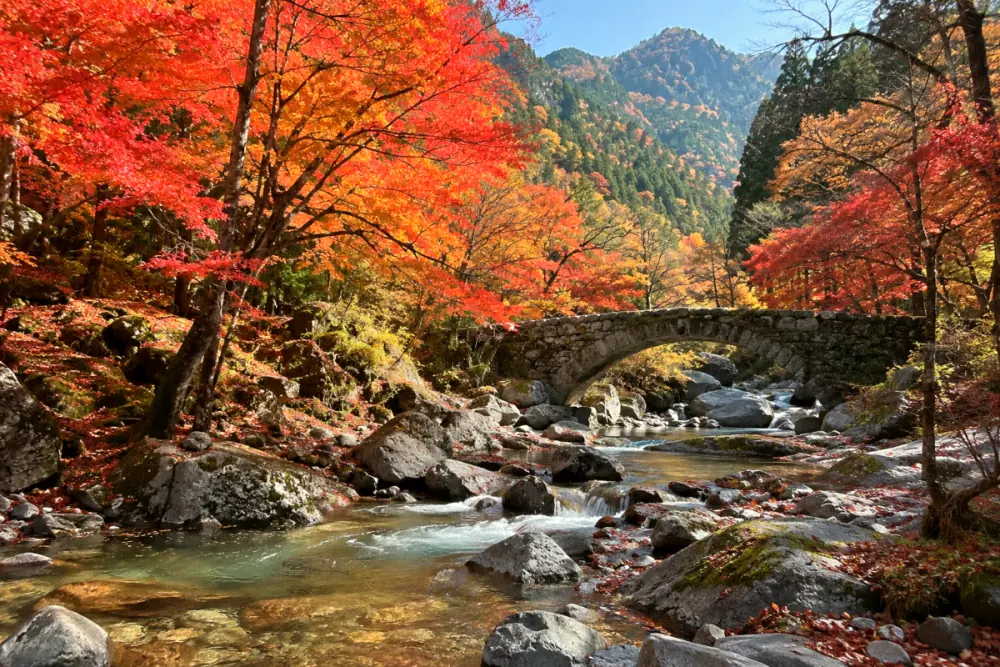
02NaejangsanRed leaves and chestnut branches on Naejangsan 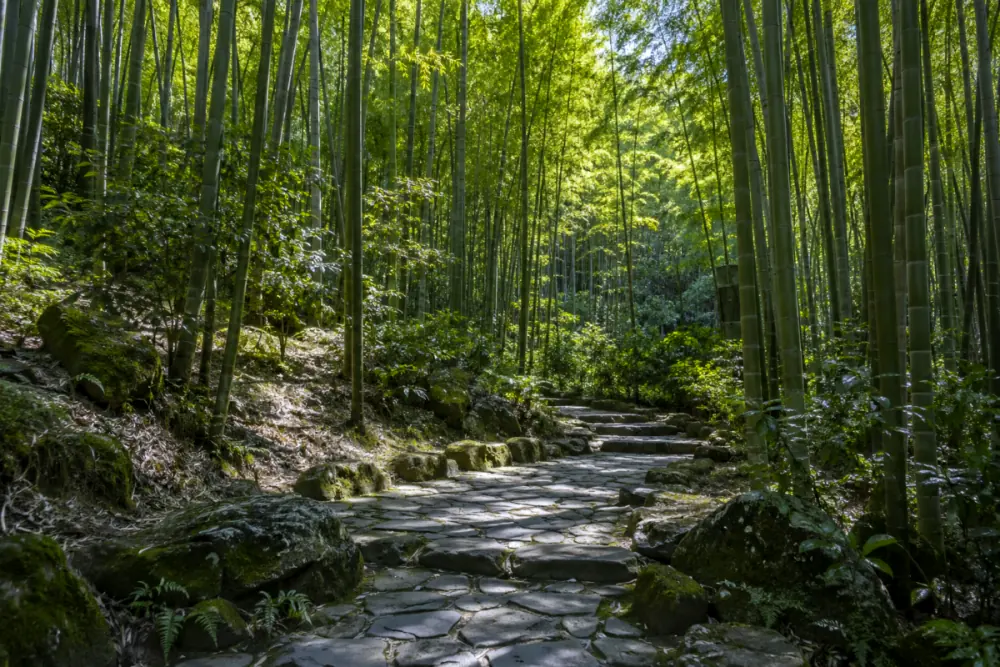
03GyeonggijeonQuiet greens in the shade of bamboo 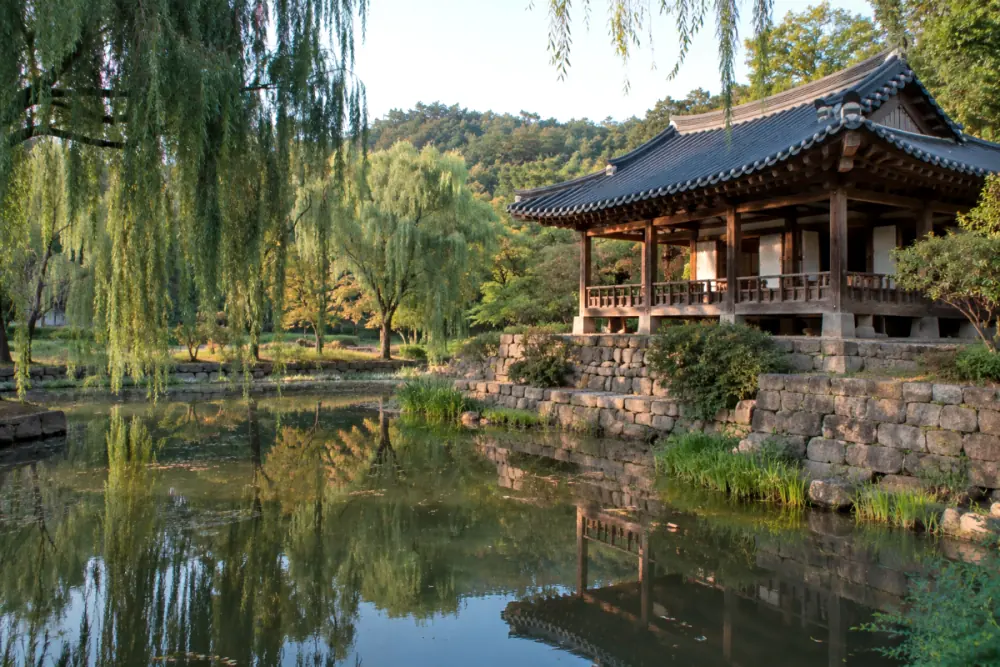
04GwanghalluA quiet Namwon afternoon beneath the pavilion 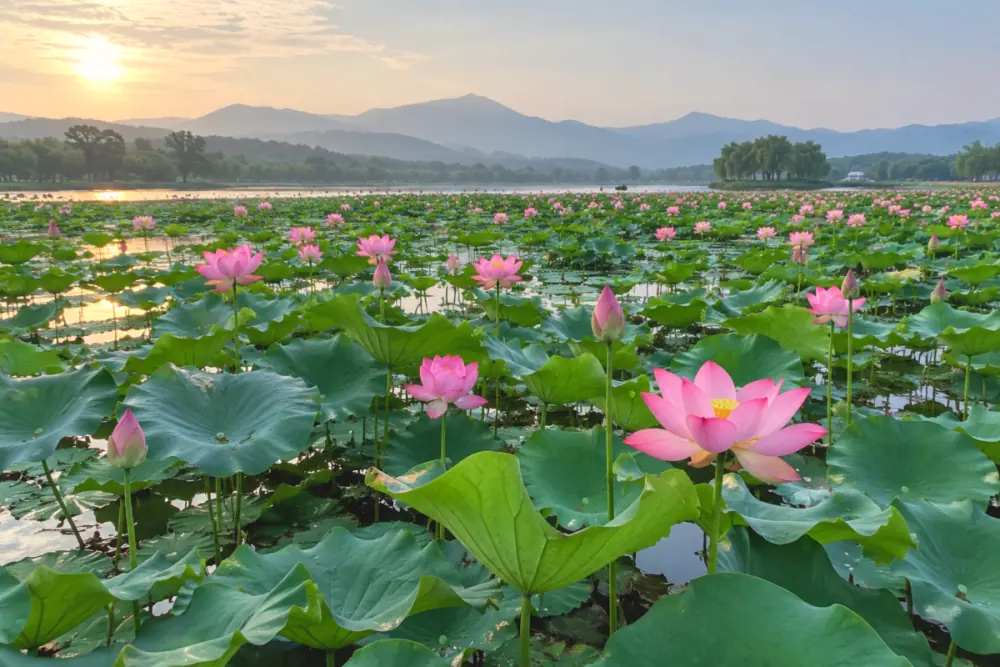
05DeokjinA gentle pink among the lotus leaves 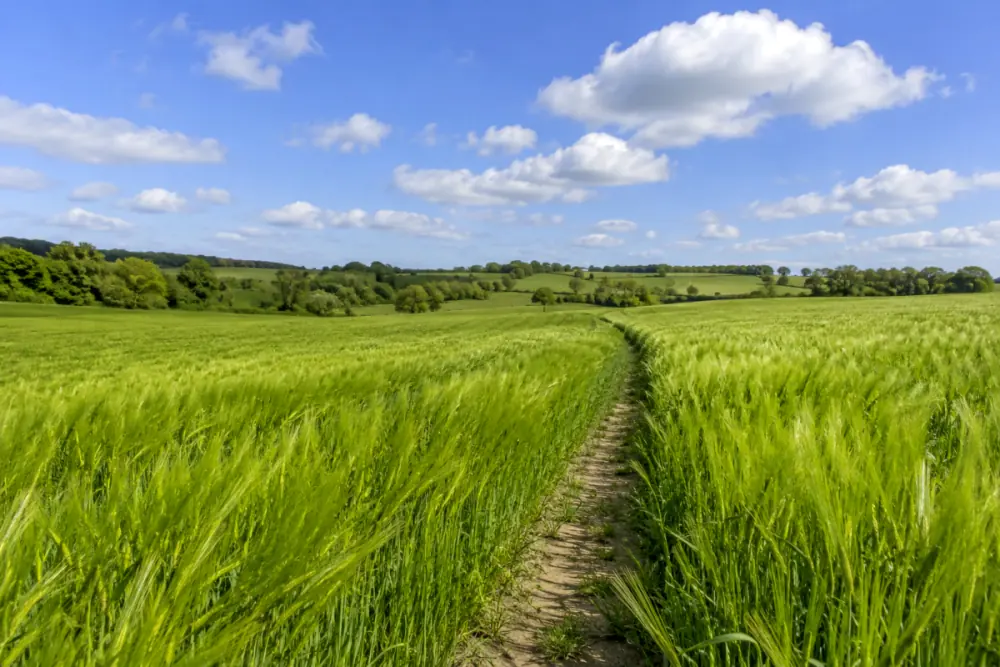
06Green BarleyGentle spring light over waves of green barley 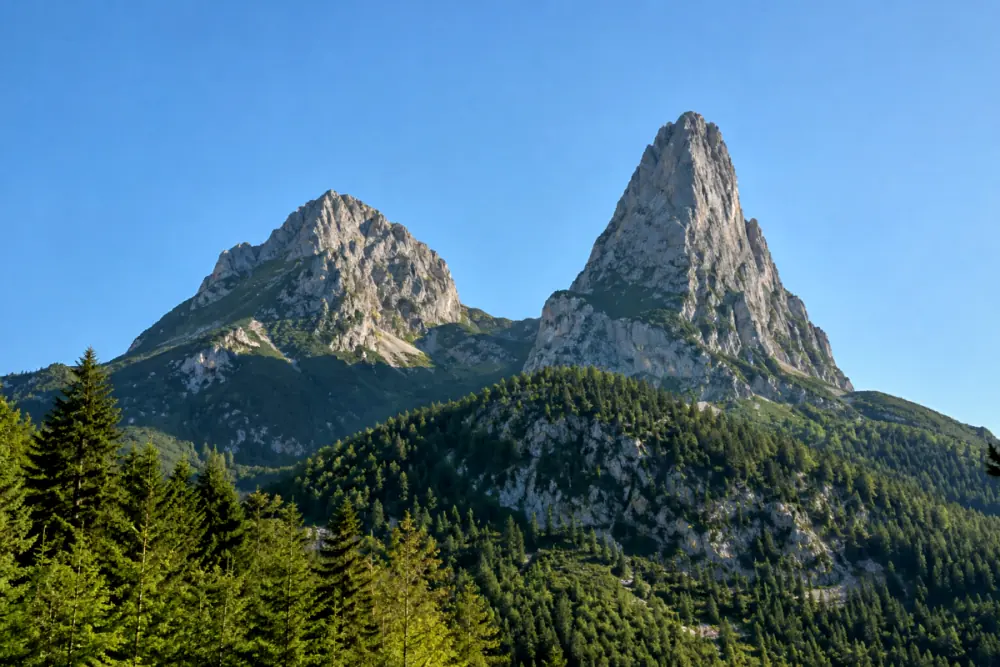
07MaisanSoft stone tones layered across the twin peaks 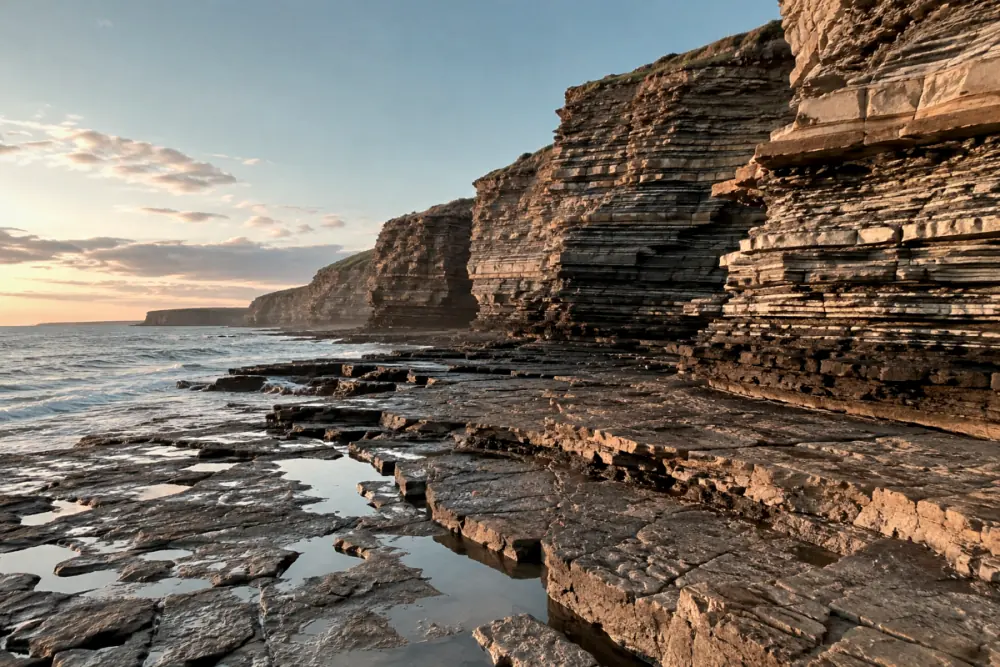
08ChaeseokgangQuiet gray-brown tones in the layered coastal rock 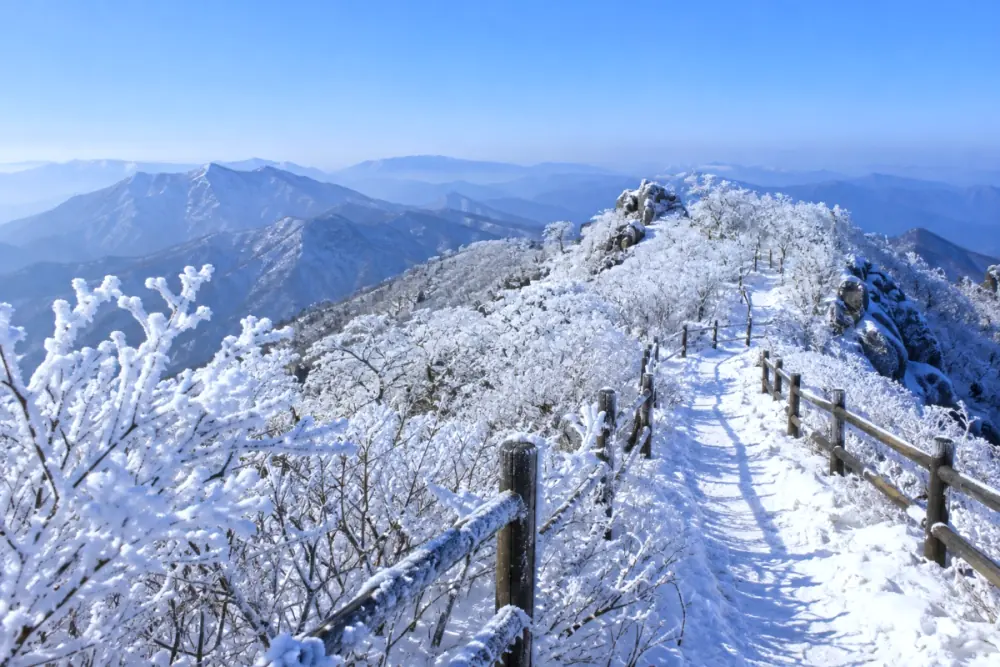
09DeogyusanClear winter sky above the frosted ridge 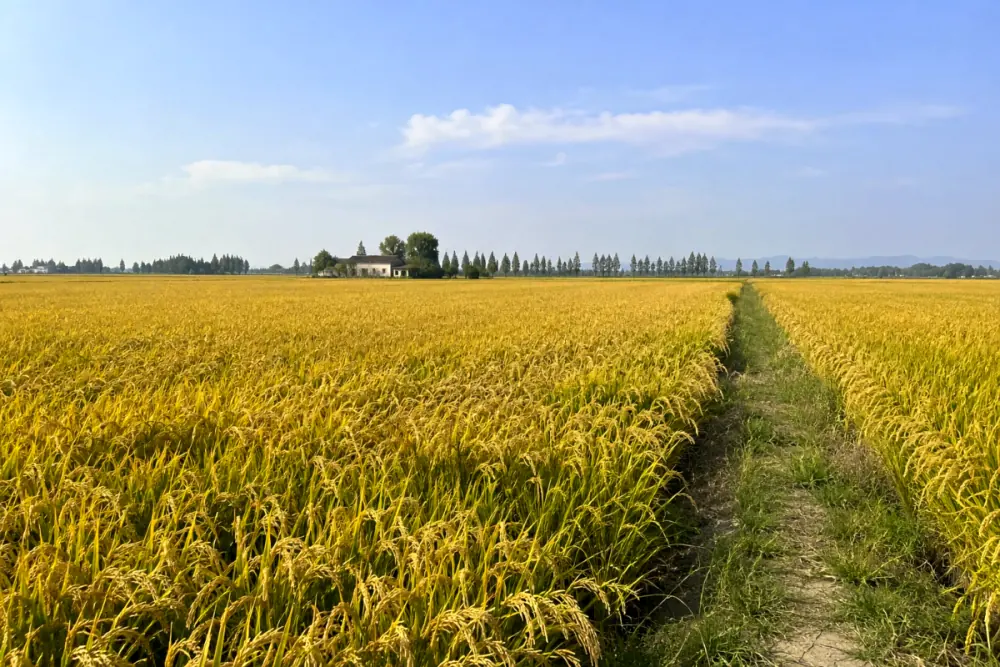
10GimjeGolden fields ripening all the way to the horizon
Rendered by the app at each filter’s default intensity (78–84)
02 — THE HANJI LAB
One slider.
Color and tone only.
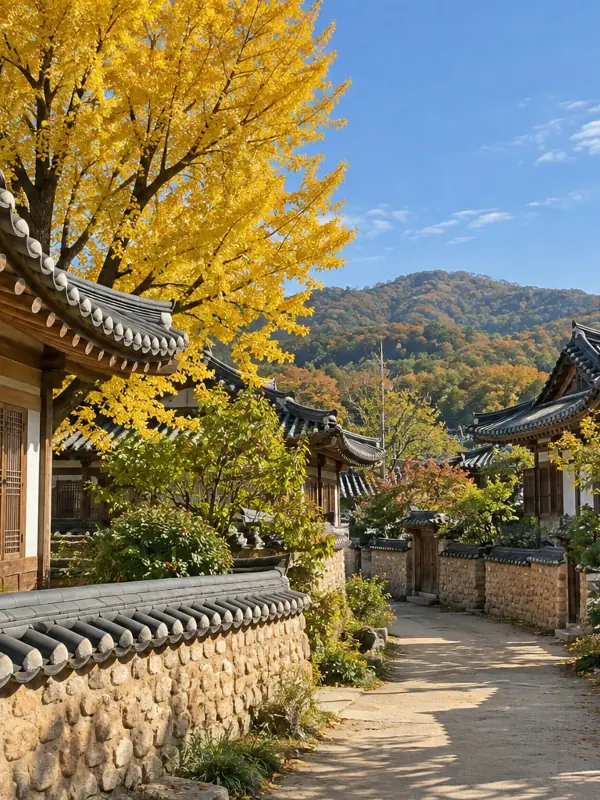
Put all twenty filters on the app’s first photo, an autumn hanok lane. The strip under the photo shows what the filter does to eleven steps of gray: light grays turn cream, dark grays turn to wood, and pure white stays clean. Some, like Lacquer and Knot, lift the black a little.
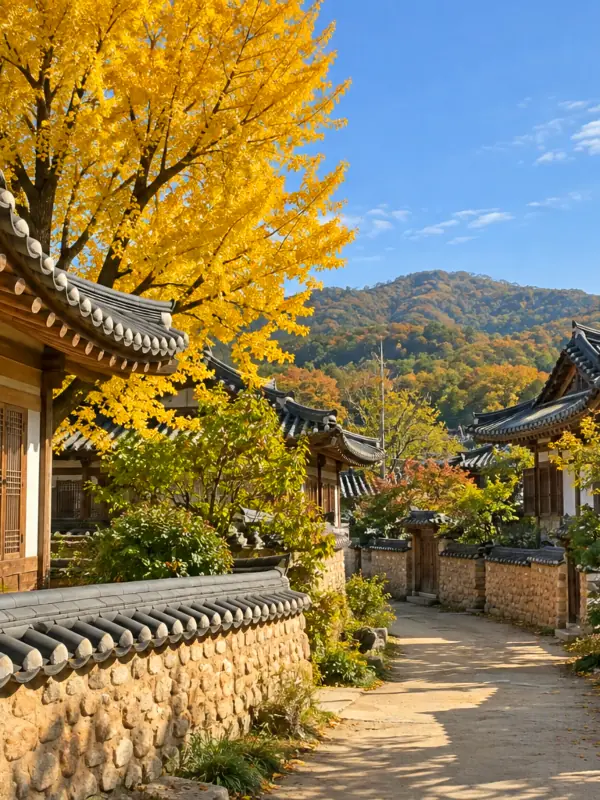
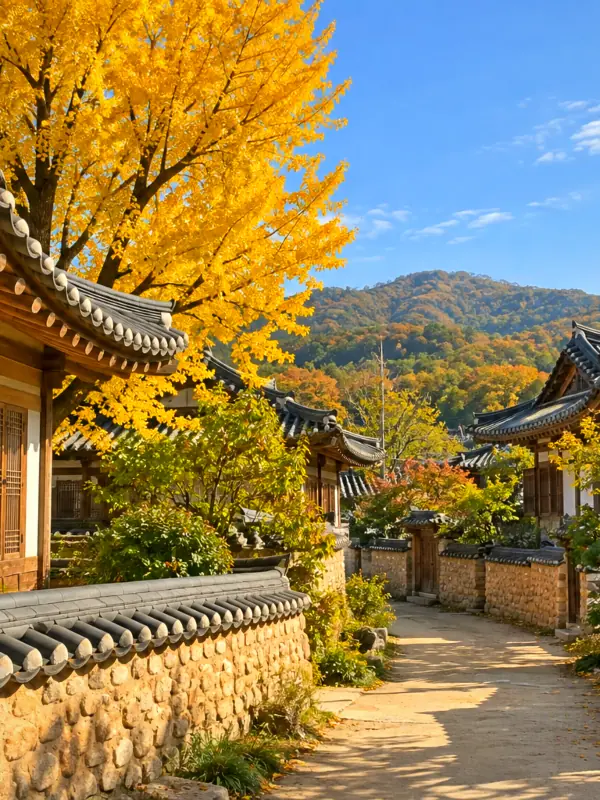
BlackWhite
The strip applies the app’s own filter definitions (color matrices). On the photo, some filters also darken the edges a little (vignette).
A web preview that blends results rendered by the app at intensity 0, 50 and 100. The app calculates every value live.
Turn on JavaScript to change the filter and intensity yourself.
03 — THE CABINET
Well-loved things.
Colors that linger.
The ten mood filters sit in a display cabinet. Each shelf’s paper doors slide open, and tapping a shelf closes and reopens them on the photo before the filter.
Rendered by the app at each filter’s default intensity
04 — THE APP
The photo up front.
One slider at hand.
The View and Mood tabs, the filter thumbnails and the intensity slider sit under the photo. Tap the handle to fold the panel away and see the photo larger.
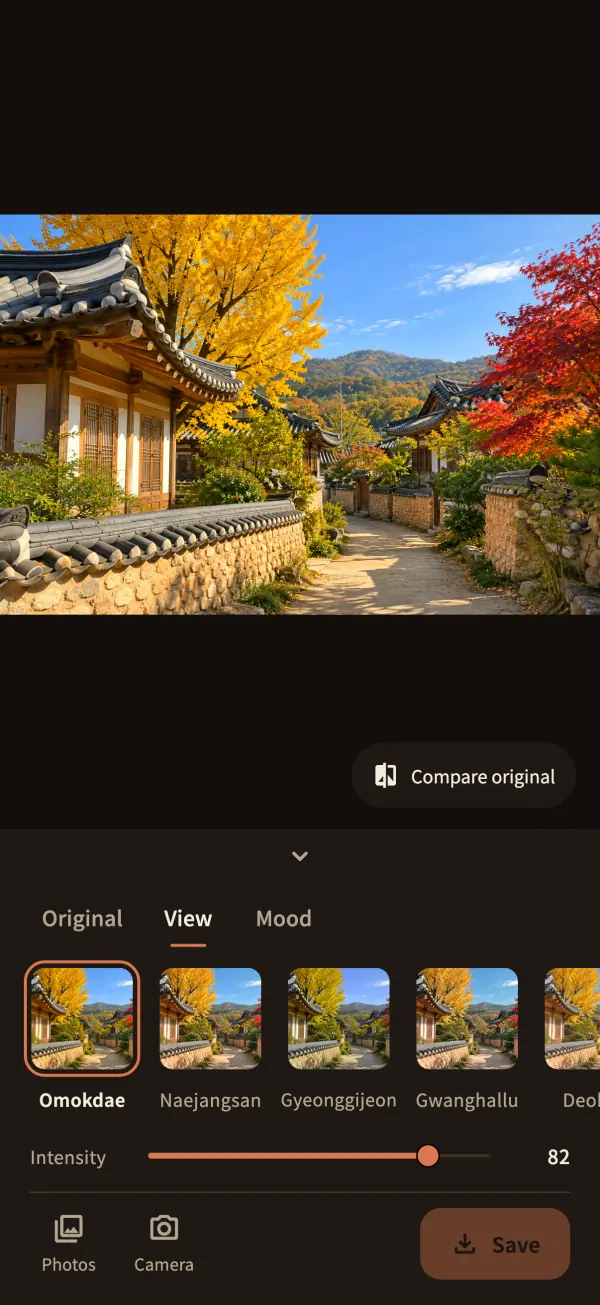
01First screen · OmokdaeThe app opens on an autumn hanok lane, so you can try filters before any permission. 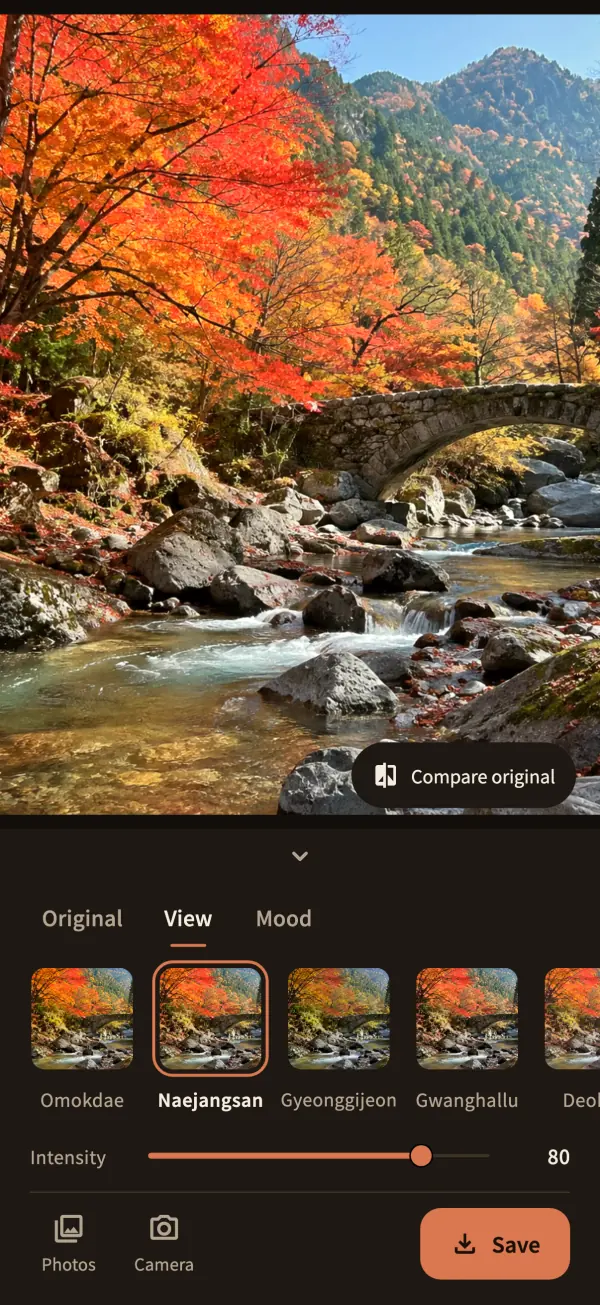
02View · NaejangsanPick View or Mood, then tap a thumbnail to apply it. 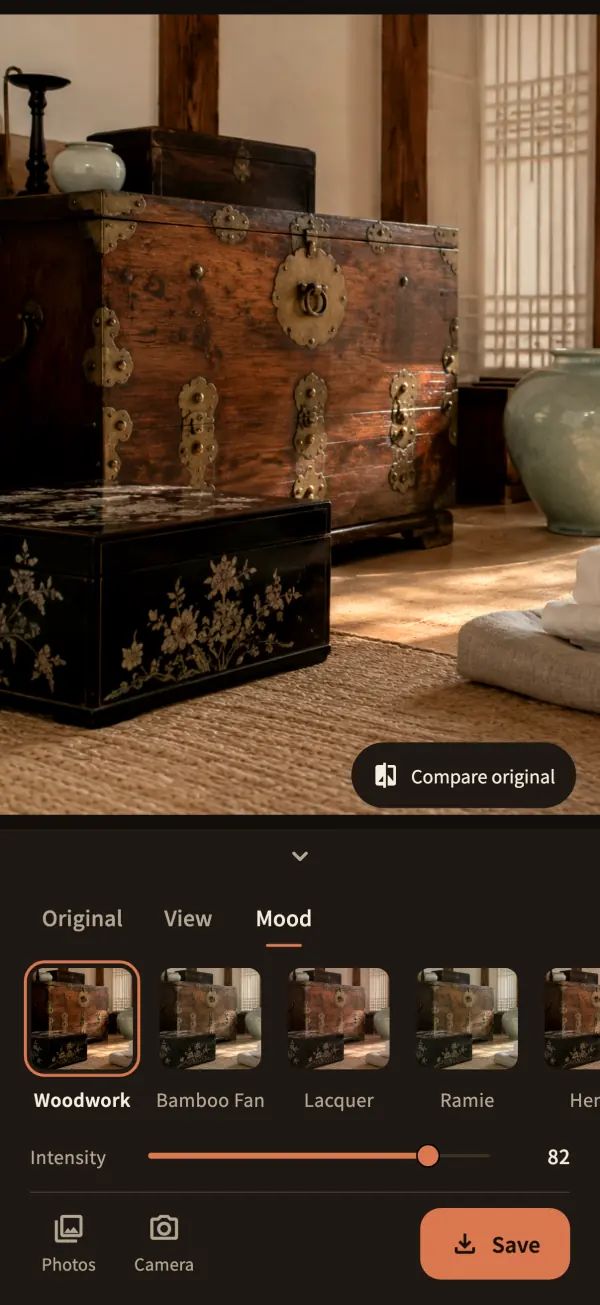
03Mood · WoodworkMood filters take their colors from well-loved things: wood, fans, hanji. 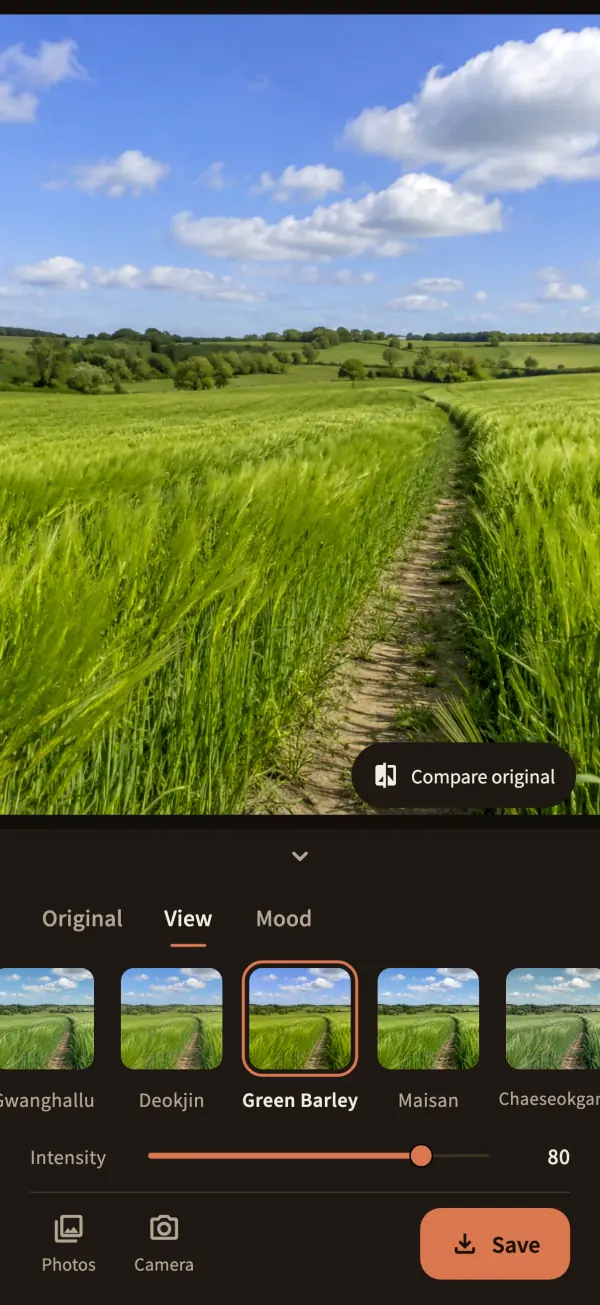
04View · Green BarleyEach filter keeps its own intensity while the app is open, even after you try others. 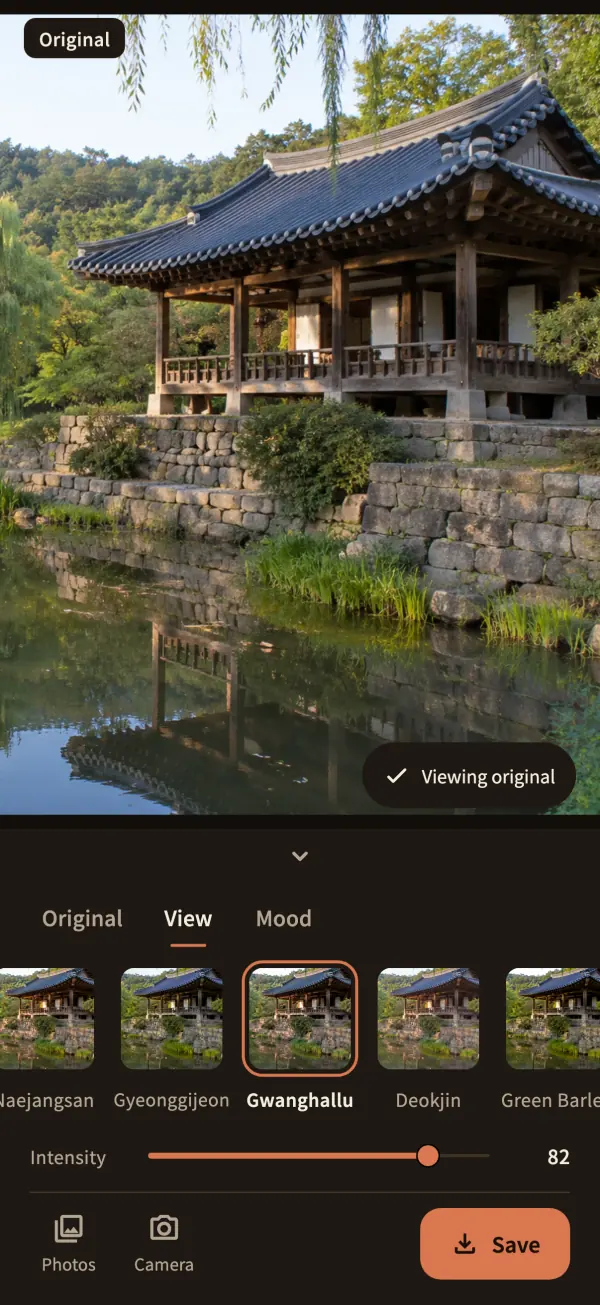
05Compare · GwanghalluTap Compare original to keep the original on, or press and hold the photo. 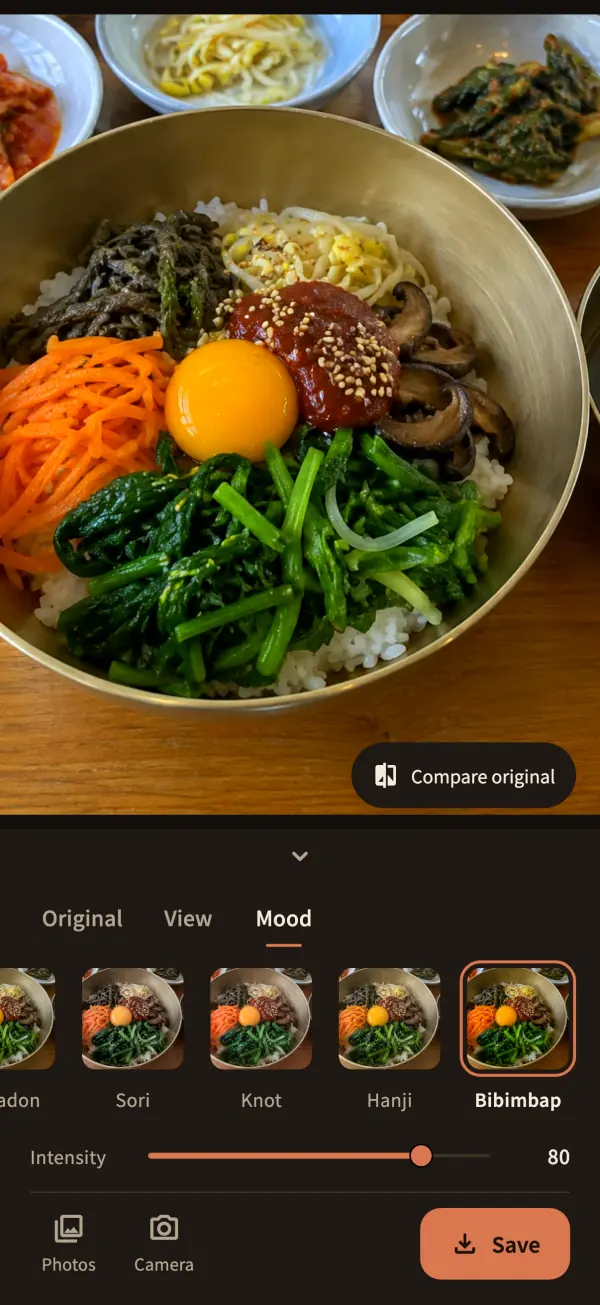
06Mood · BibimbapBibimbap is the one filter that deliberately keeps colors bright.
App screens: the app’s real editor, captured.
05 — GET STARTED
Your first frame:
an autumn hanok lane.
- 01
Wood tones, right away
The app opens with a photo of an autumn hanok lane, tiled roofs, wooden pillars and a ginkgo tree, so you can try the filters and intensity before granting any permission. That photo is never saved.
- 02
Camera or library
Camera access is requested when you tap the camera button. The live view shows the filter too, and the shot keeps exactly what was on screen.
- 03
Save to Photos
Saving asks for permission to add photos and creates a new filtered photo. Your original stays untouched.

Pungryu Jeonbuk
iOS · Android
- Platforms
- iOS · Android
- Filters
- 20 · 10 view, 10 mood
- Controls
- Intensity (per filter, 0–100)
- Saving
- JPEG · up to 4096 px long edge
- Languages
- Korean · English
- Account and ads
- None

Get in touch for download and availability information.
A few useful answers.
Does it add grain or paper texture?


No. So it doesn’t overlap with RetroSeoul (film grain) or Bitgoeul Gwangju (glow), nothing is painted on: only color and tone change. A few filters just darken the edges a little (vignette).
How is intensity remembered?
Separately for each filter. While the app is open, a filter keeps its intensity after you try others; closing the app brings back the starting values.
Does the camera view match the saved photo?
The shot keeps just the part of the full-screen preview you saw. The preview and the saved photo use the same color grade and drawing code, so you get what you saw.
Can I save the sample photo?
No. The hanok lane on the first screen is there to preview filters. Only photos you pick from your library or take with the camera can be saved.
Does the saved photo keep location data?
The JPEG the app creates does not carry over metadata from the original, such as location. Originals in your library stay as they are.
Does it need the microphone?
No. The app never records sound, so it does not ask for microphone access.
Every photo in the filter previews and app screens is an AI-generated image made from text alone, not a photo of the place itself.
YOUR PHOTOS, EXPLAINED
The warmth goes in the photo.
The photo stays with you.
Photos are processed on your device. No account, no ads, and nothing is uploaded.
- No account, ads, or analytics
- No photo or usage uploads
- Camera only after you tap the camera button
- Saved to Photos only when you tap Save

A few more little companions
All apps


LET’S SAY HELLO
Little ideas.
Lovely conversations.
An app idea, a question, or something that could be better.
I’d love to hear from you.