
 All apps
Mulbit BusanA clear-sea filter camera
Busan’s sea,in clear pastels.
From a clear Haeundae noon to the pastel houses of Huinnyeoul. Twenty filters from ten Busan beaches and ten seaside walks turn skies aqua and shadows a soft peach. Add as much grain as you like with its own slider.
 iOS
 Android



MULBIT BUSAN · OVERVIEW
Ten beaches, ten walks.
Twenty shades of Busan’s sea.
Skies and sea turn clear aqua and teal, shadows lift into soft peach and rose, leaves go a sunny lime and white walls stay clean. From a Haeundae noon to the pastel roofs of Gamcheon, the same photo becomes a different sea with every filter.








- Filters
- 2010 sea · 10 walk
- Sliders
- 2Intensity and grain
- Pixels
- 4096Longest saved edge
- Uploads
- 0No account. No ads.
01 — ALONG THE COAST
West from Dadaepo,
east to Gijang.
The ten sea filters, in order along the coast. Scroll on and the boat heads east; where the wave has washed over, the filter is on.
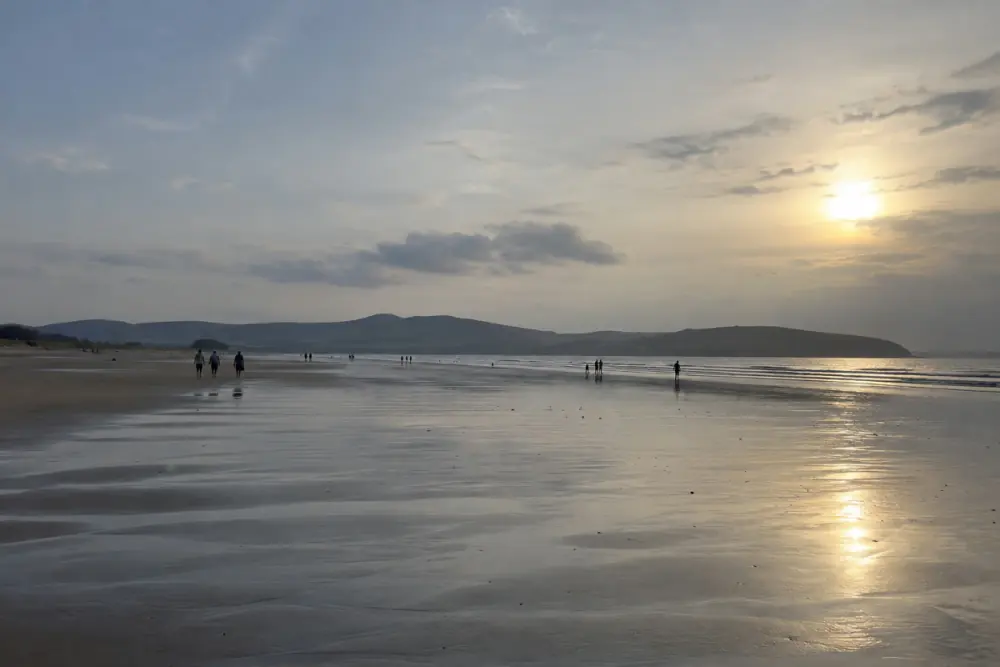
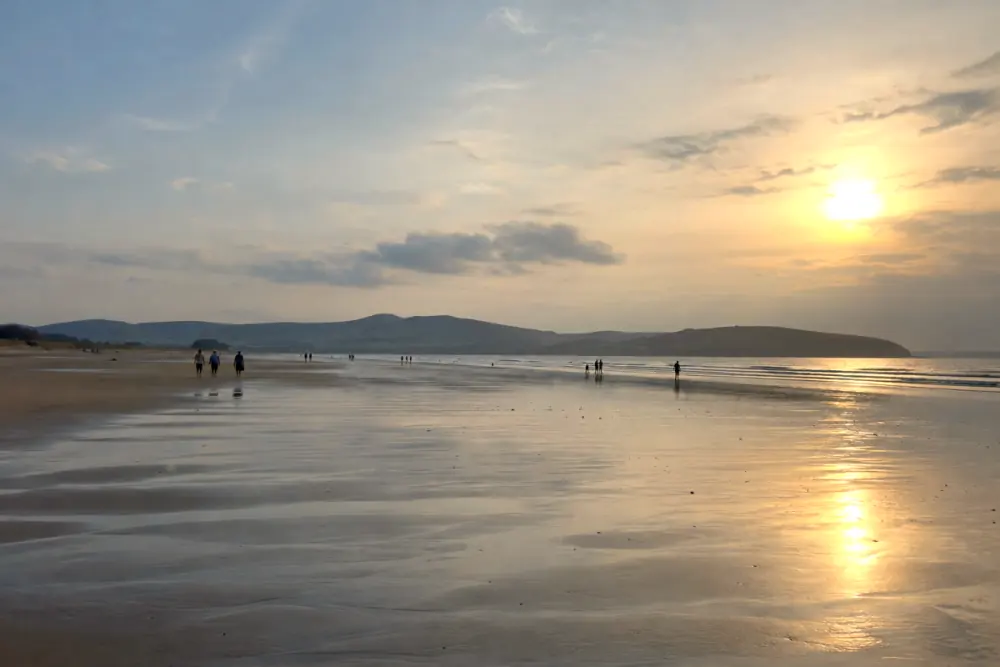 01DadaepoA hint of apricot warmth over the wide sands

 02SongdoClear emerald water beneath the cable cars
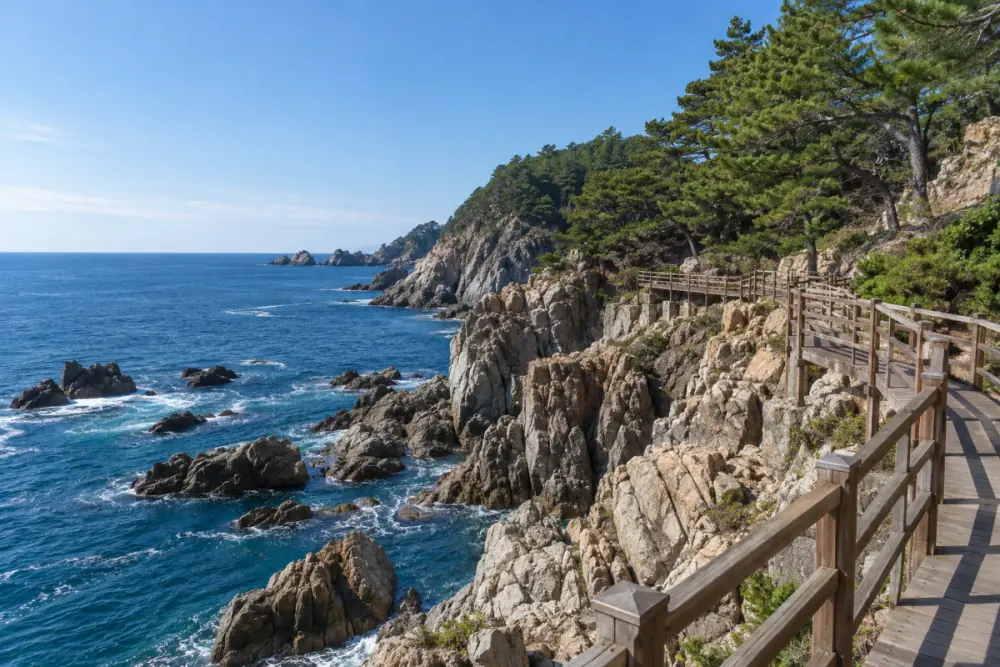
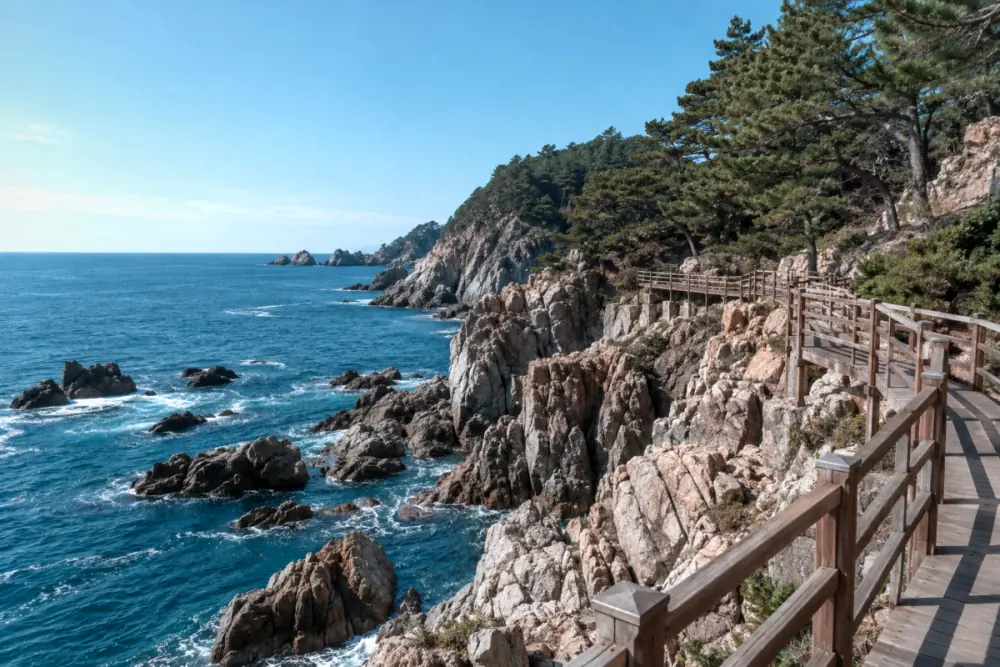 03TaejongdaeCool blues beside the coastal cliffs
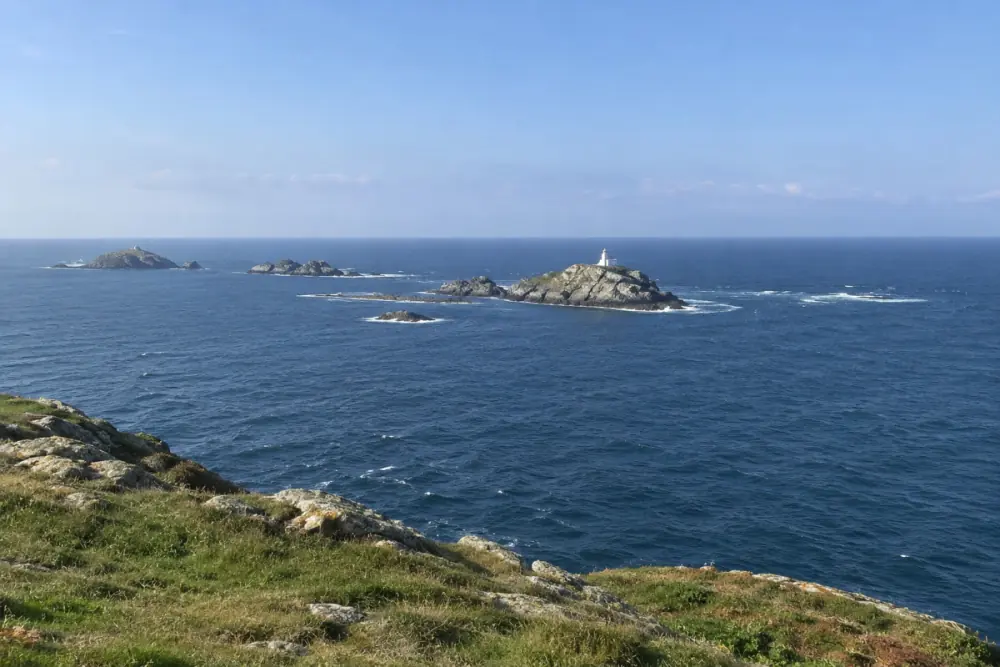
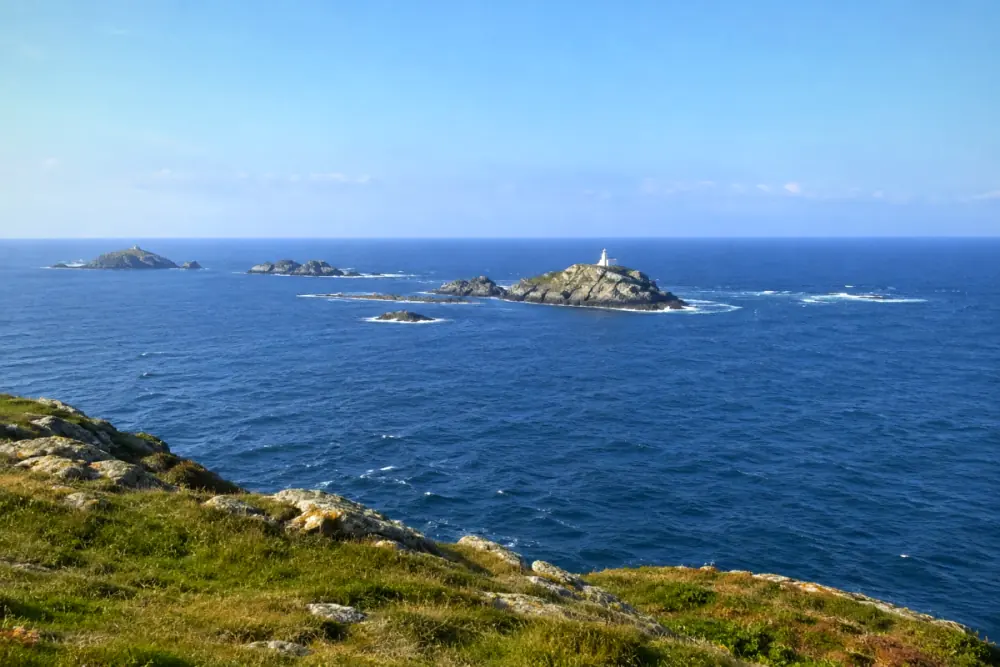 04OryukdoA crisp blue horizon between the islands
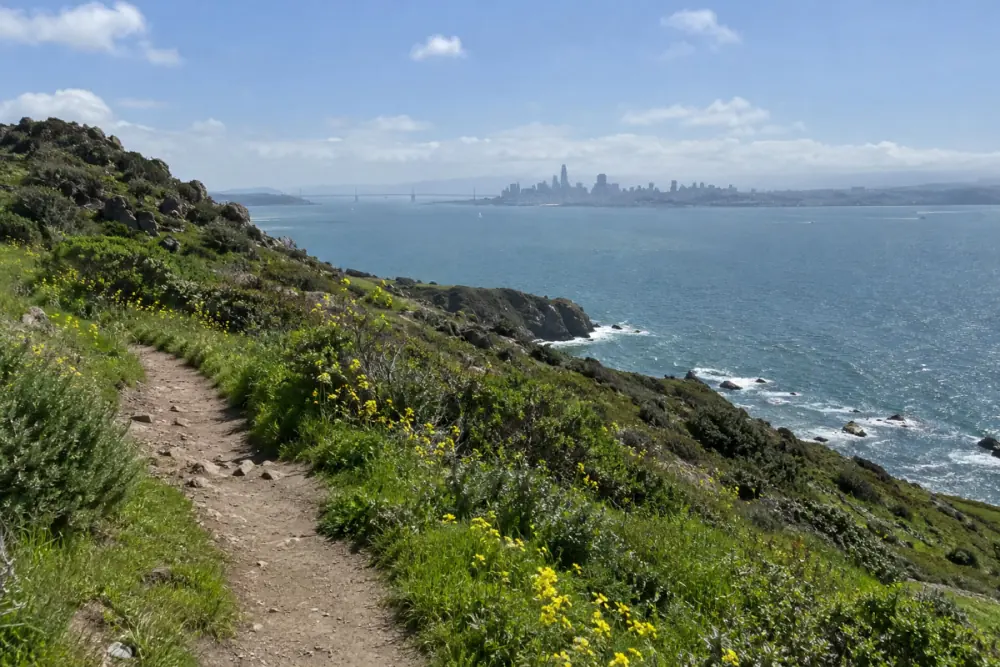
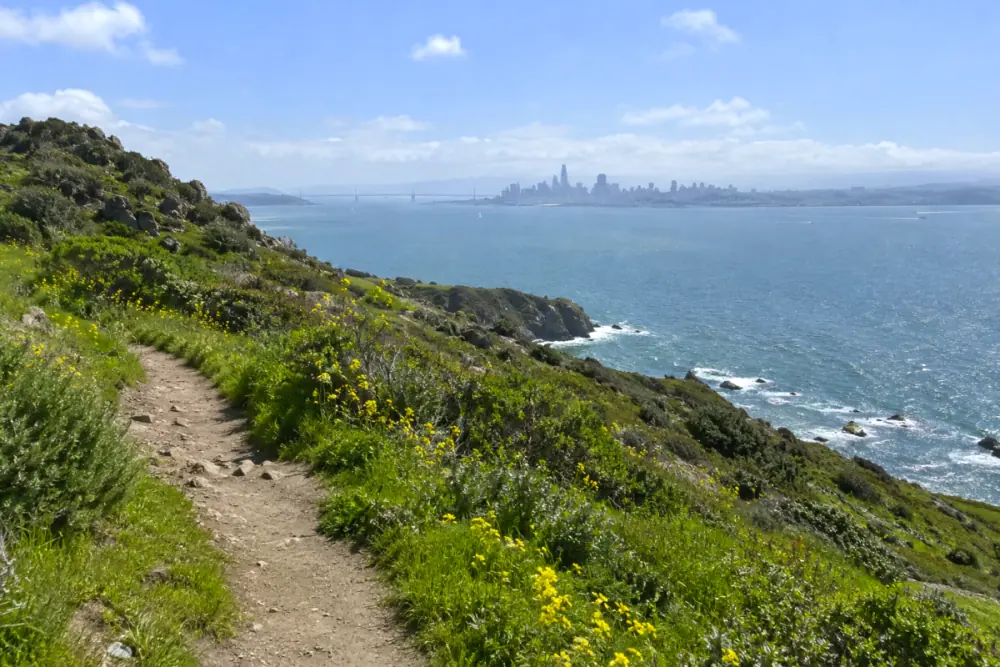 05IgidaeA lime-green breeze along the coastal path
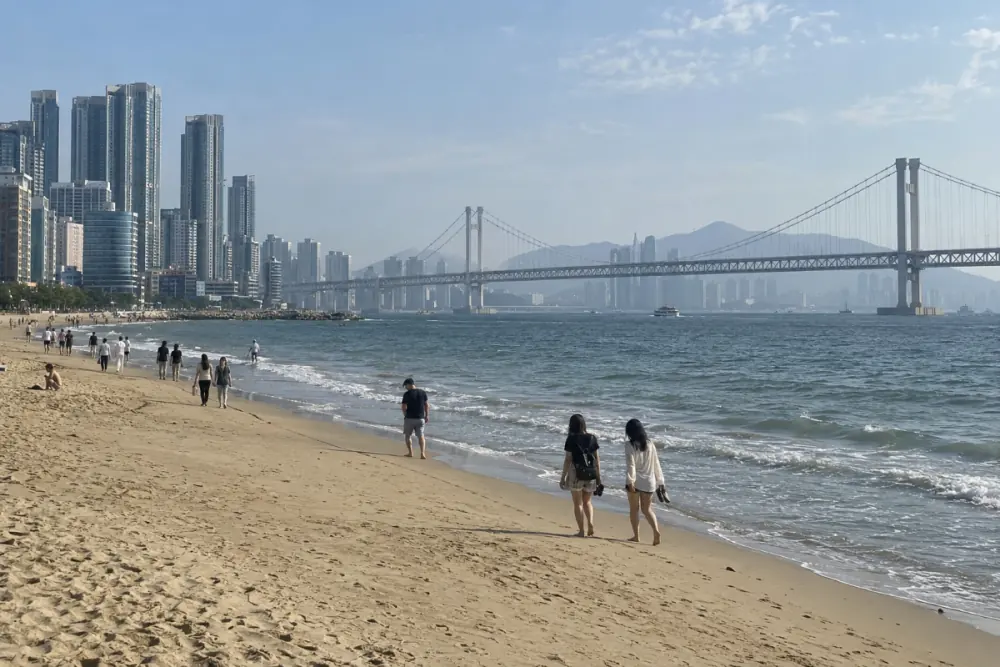
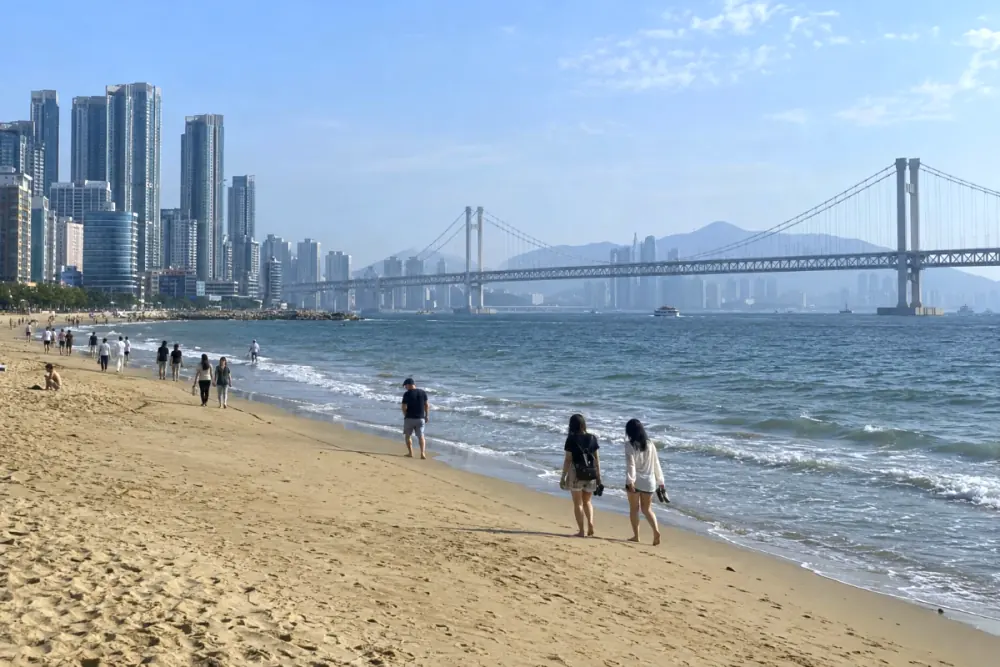 06GwangalliFresh open water beyond Gwangandaegyo Bridge
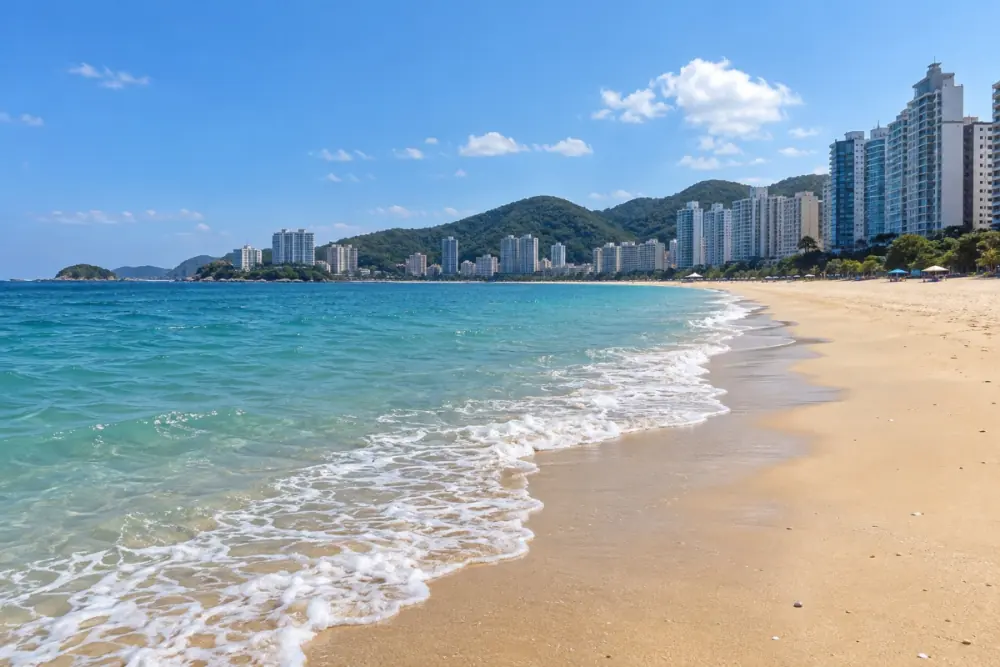
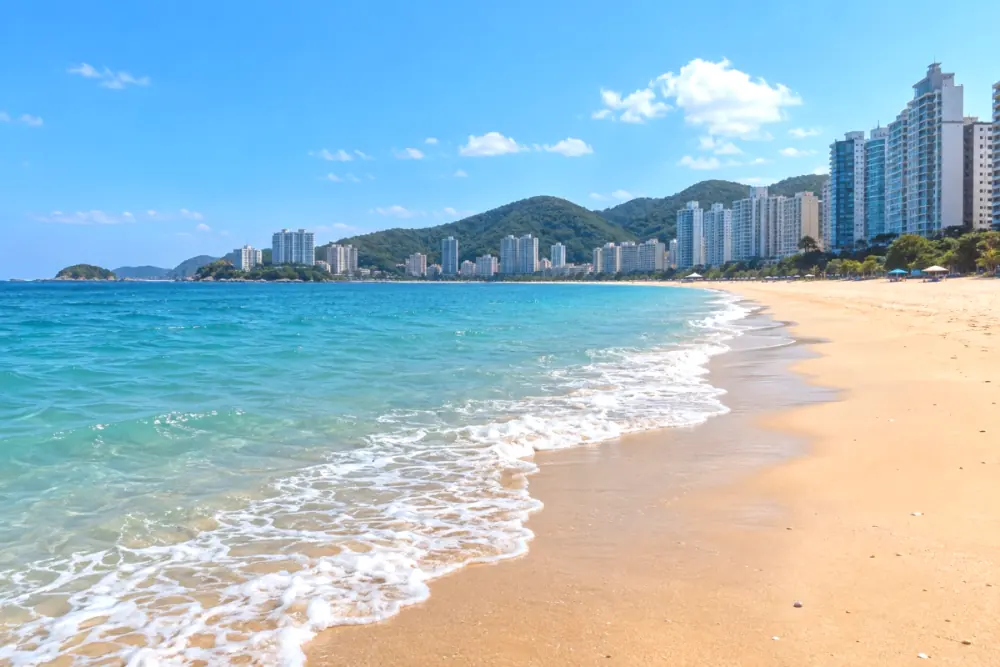 07HaeundaeClear midday between Haeundae’s sea and sky

 08CheongsapoSoft turquoise filling a small harbor
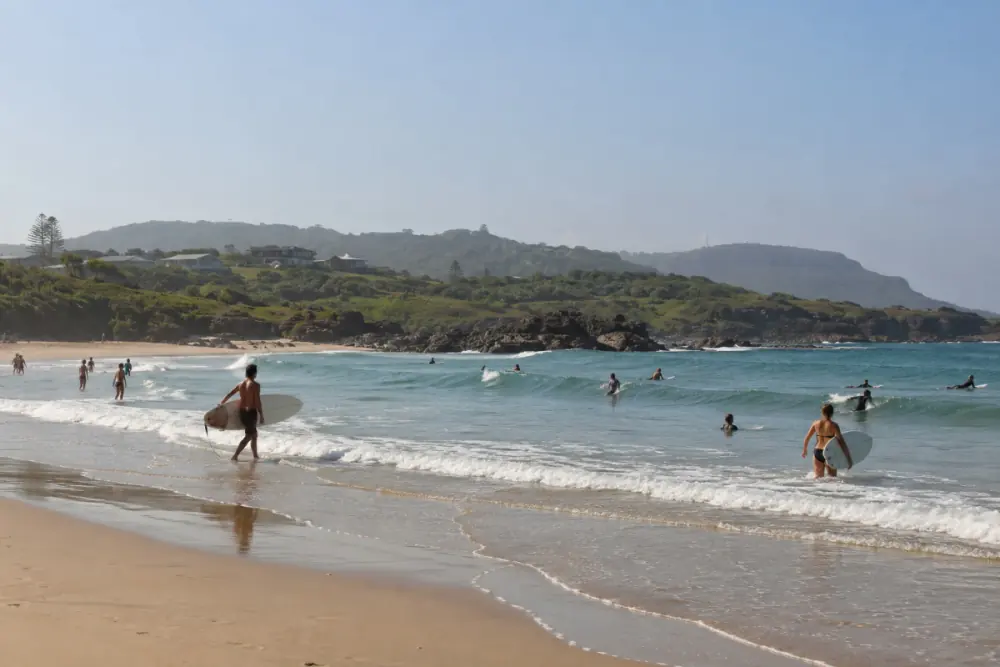
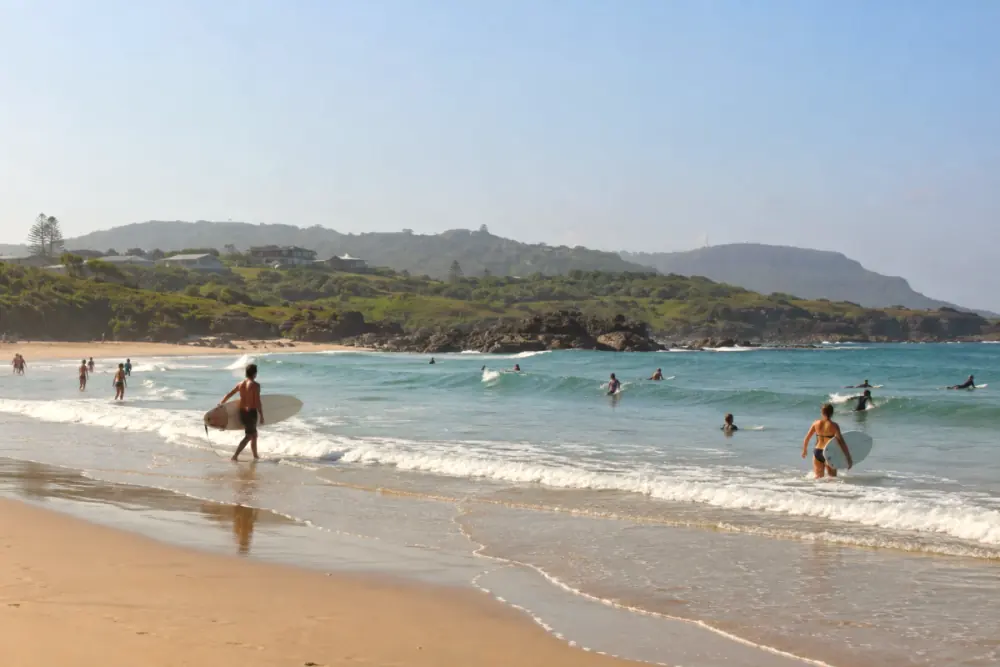 09SongjeongAn airy summer across the sandy shore
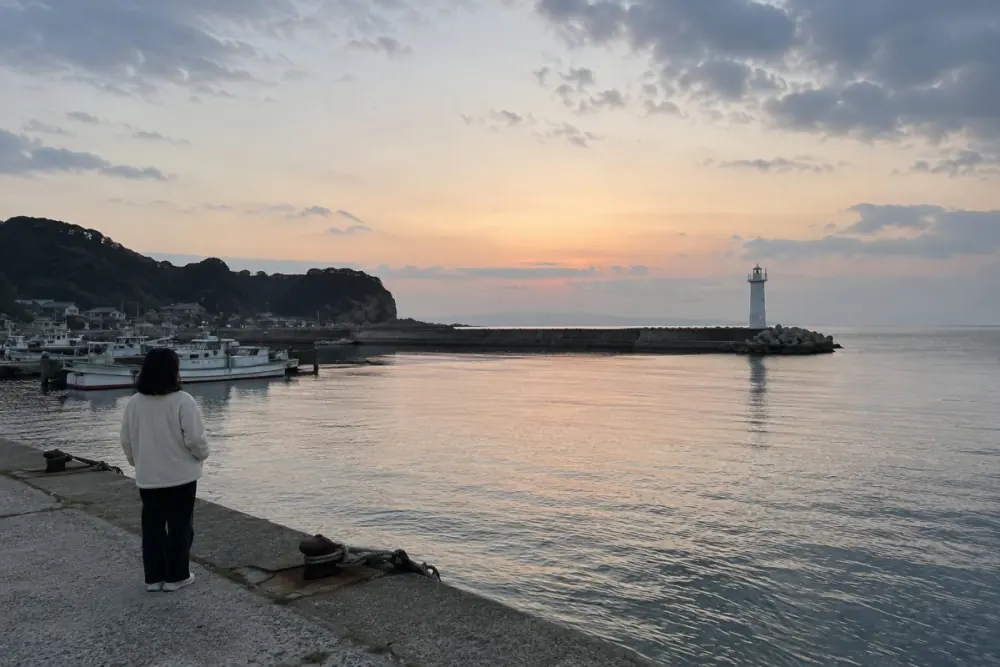
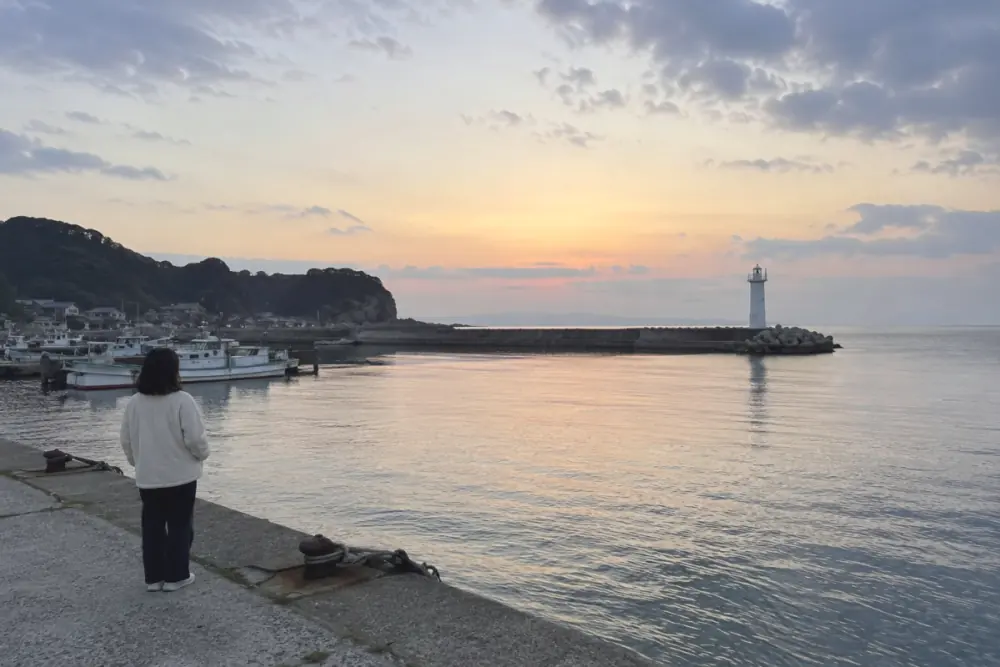 10GijangA lavender dawn beyond the lighthouse
Rendered by the app at each filter’s default intensity (80–85) · the coastline only shows the order of the places.
02 — THE LAB
One drop,
and the color spreads.
Dip the app’s first photo, a seaside village, into all twenty filters. Each filter keeps its own intensity, and the grain stays put when you switch, just like the app.


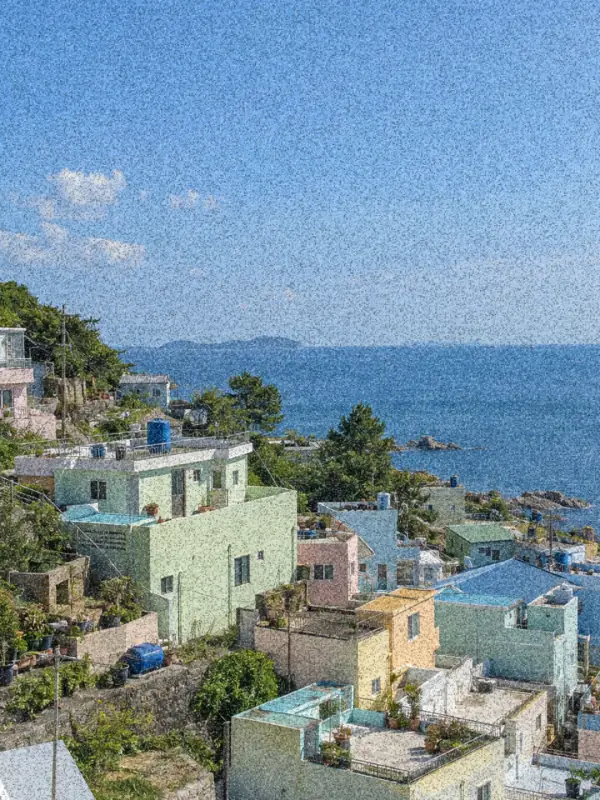

Grain isn’t part of any filter. You add it with the slider under intensity (it starts at 0), and it turns off for the original and while comparing.
A web preview that blends four results rendered by the app (original, intensity 100, grain 100, both). The app calculates every value live.
Turn on JavaScript to change the filter and both sliders yourself.
03 — POSTCARDS
Every lane,
a different afternoon.
The ten walk filters, hung up as postcards. Tap a card to flip it and see the photo before the filter.
Rendered by the app at each filter’s default intensity
04 — THE APP
The photo up front.
The blue at hand.
The Sea and Walk tabs, the filter thumbnails and the intensity and grain sliders sit under the photo. Tap the handle to fold the panel away and see the photo larger.
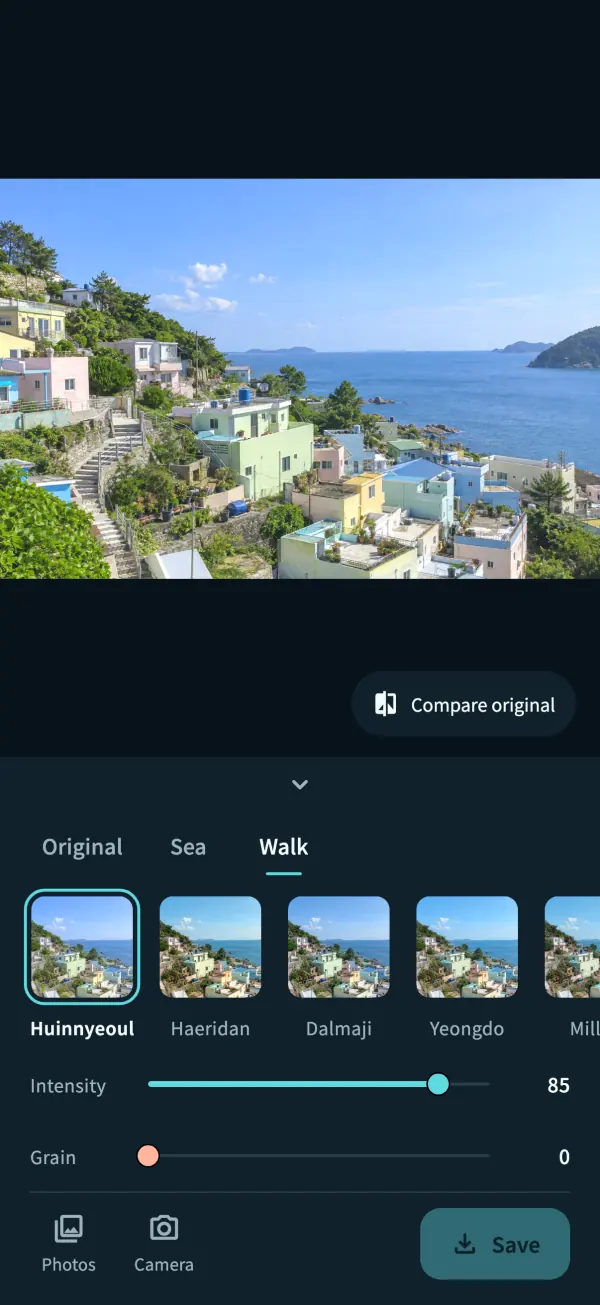
01First screen · HuinnyeoulThe app opens on a seaside village photo, so you can try filters before any permission. 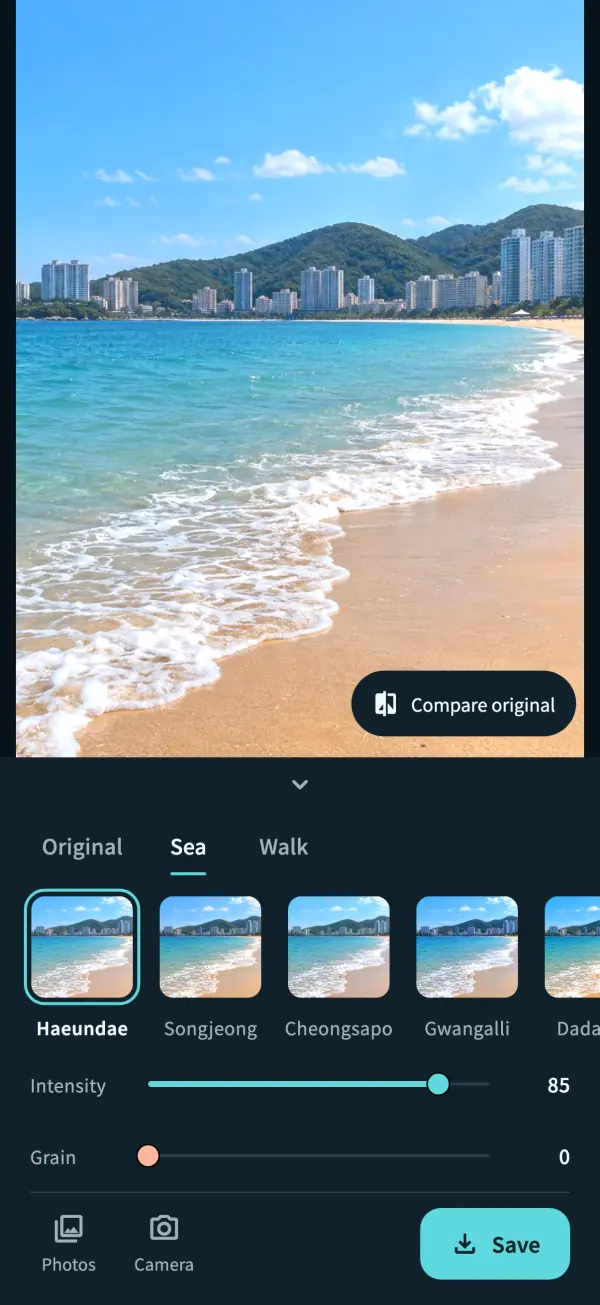
02Sea · HaeundaePick Sea or Walk, then tap a thumbnail to apply it. 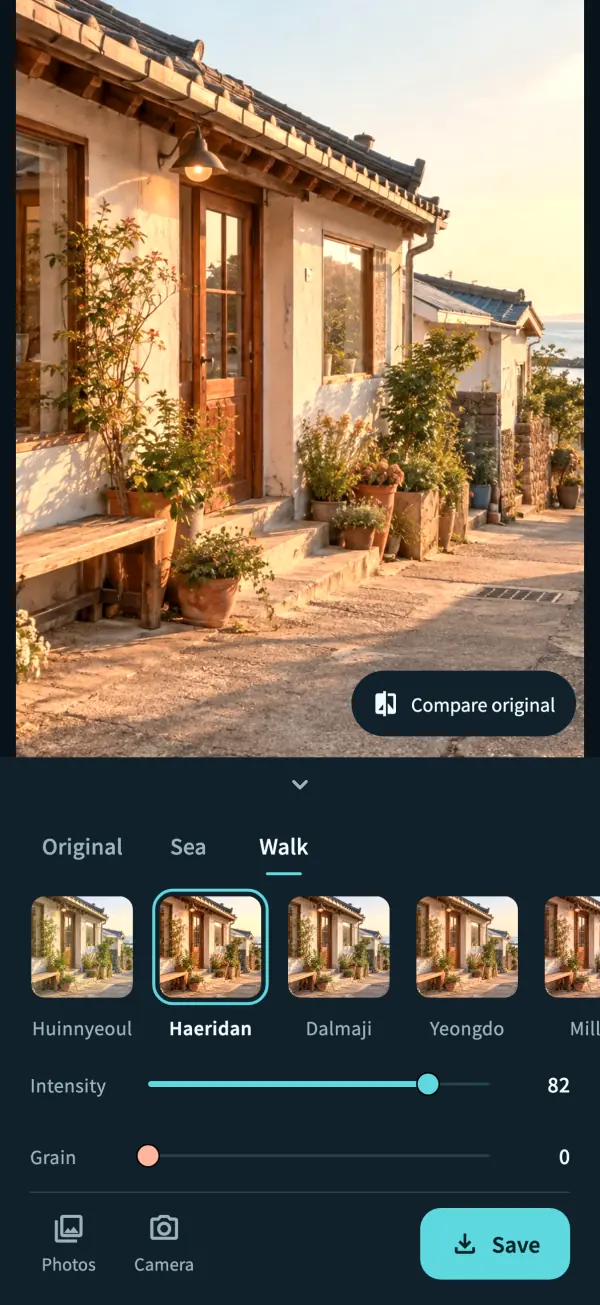
03Walk · HaeridanWalk filters carry seaside lanes, little shops and café afternoons. 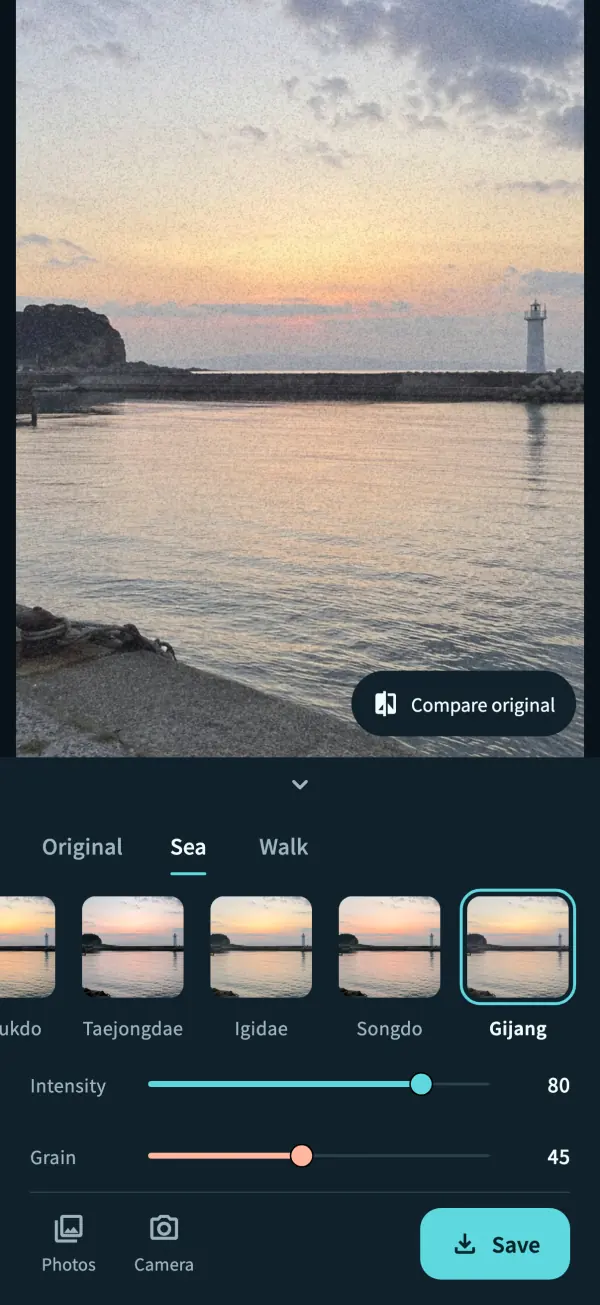
04Grain · GijangAdd grain with the slider under intensity; it stays when you switch filters. 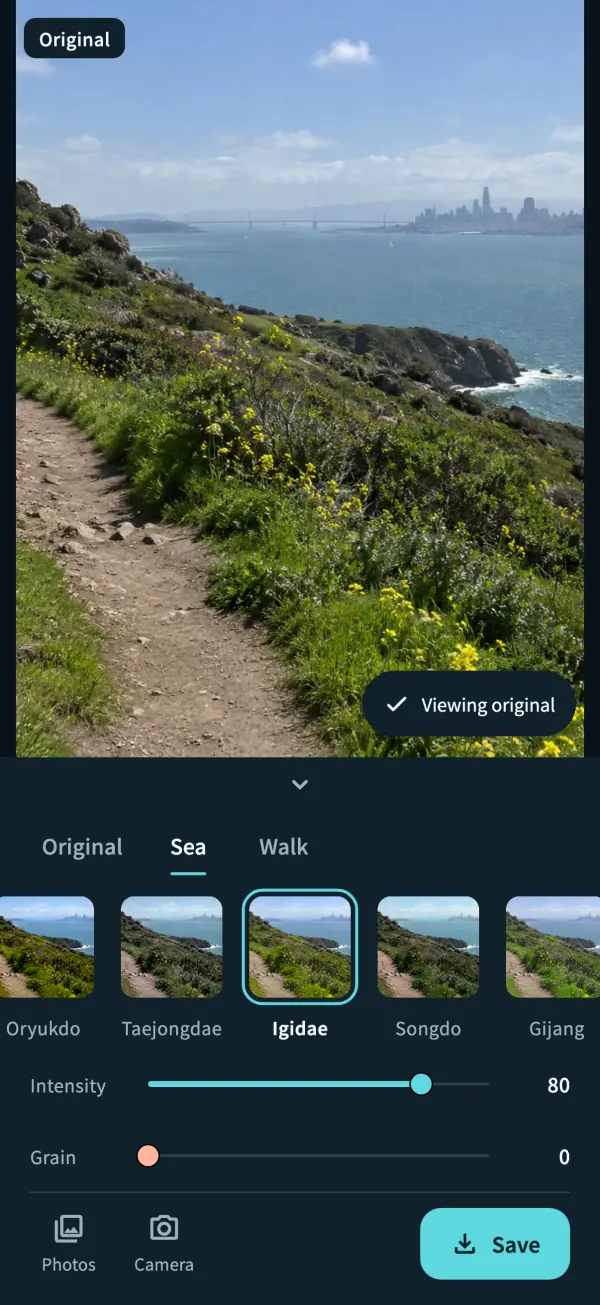
05Compare · IgidaeTap Compare original to keep the original on, or press and hold the photo. 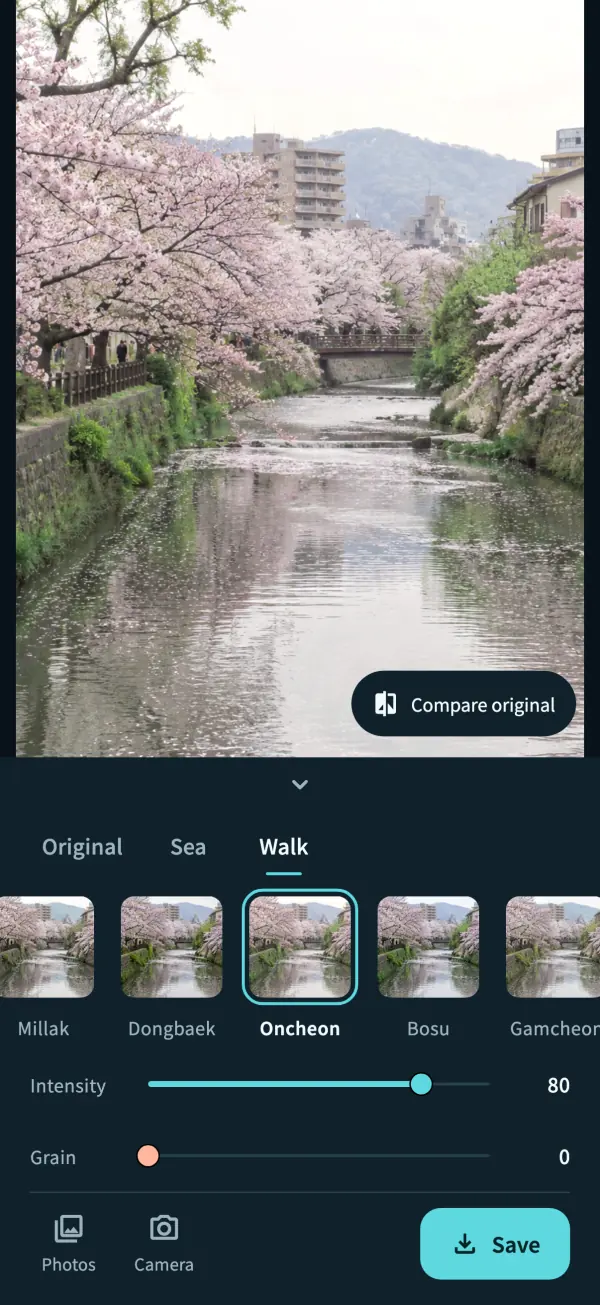
06Walk · OncheonEach filter keeps its own intensity while the app is open, even after you try others.
App screens: the app’s real editor, captured.
05 — GET STARTED
Your first frame:
a seaside hill village.
- 01
The blue, right away
The app opens with a photo of a seaside hill village of pastel houses, so you can try the filters and both sliders before granting any permission. That photo is never saved.
- 02
Camera or library
Camera access is requested when you tap the camera button. The live view shows the filter too, and the shot keeps exactly what was on screen.
- 03
Save to Photos
Saving asks for permission to add photos and creates a new photo with the filter and grain. Your original stays untouched.

Mulbit Busan
iOS · Android
- Platforms
- iOS · Android
- Filters
- 20 · 10 sea, 10 walk
- Controls
- Intensity (per filter) · grain (shared)
- Saving
- JPEG · up to 4096 px long edge
- Languages
- Korean · English
- Account and ads
- None

Get in touch for download and availability information.
A few useful answers.
Is grain part of the filters?


No. Grain isn’t set by any filter; you add as much as you like with the grain slider under intensity (it starts at 0). It stays when you switch filters and turns off for the original and while comparing.
Does the camera view match the saved photo?
The shot keeps just the part of the full-screen preview you saw. The preview and the saved photo use the same color grade and drawing code, so you get what you saw. Grain shimmers a little in the live view and is saved as one still pattern.
Can I save the sample photo?
No. The seaside village on the first screen is there to preview filters. Only photos you pick from your library or take with the camera can be saved.
Will my original photo change?
No. Originals in your library stay as they are, and the filtered photo is saved as a new one. Photos taken with the camera are saved only when you tap Save.
Does the saved photo keep location data?
The JPEG the app creates does not carry over metadata from the original, such as location.
Does it need the microphone?
No. The app never records sound, so it does not ask for microphone access.
Every photo in the filter previews and app screens is an AI-generated image made from text alone, not a photo of the place itself.
YOUR PHOTOS, EXPLAINED
The blue goes in the photo.
The photo stays with you.
Photos are processed on your device. No account, no ads, and nothing is uploaded.
- No account, ads, or analytics
- No photo or usage uploads
- Camera only after you tap the camera button
- Saved to Photos only when you tap Save

A few more little companions
All apps


LET’S SAY HELLO
Little ideas.
Lovely conversations.
An app idea, a question, or something that could be better.
I’d love to hear from you.